+971 50 217 6793 Abu Dhabi, UAE [email protected]

why my dell laptop won’t turn on
lifeguard datarecovery Why My Dell Laptop Won’t Turn On Step-by-Step Fixes for Every Model When you press the power button on your Dell laptop and nothing happens or maybe the small lights turn on for a second then immediately shut off it’s super easy to panic
why my dell laptop won’t turn on You might think your laptop is completely dead, but honestly that’s rarely the case! Most of the time it’s just a simple issue like trapped static power a frozen sleep mode or a quick glitch in the system memory.
Whether you are working on an everyday Inspiron, a sleek XPS, or an enterprise Latitude, this complete guide will help you figure out what’s wrong and show you easy steps to get your Dell working again.
Dell Laptop Power Issue Diagnosing the 4 Failure States
Before trying to fix things, we need to know what kind of problem your laptop has. Dell splits these startup issues into four main types:
No Power (Zero Lights or Fan Noise)
Your laptop is totally quiet and looks lifeless. You push the power button, but no fans spin, keyboard lights don’t turn on, and even the battery charger light stays dark.
No POST (Power Lights On, Screen Remains Blank)
The laptop gets power maybe you hear the fan whirring or see the power button light up but the screen stays completely black. The system fails its initial Power-On Self-Test (POST). The big Dell logo never shows up, and you might hear strange beeping sounds or see blinking colored lights.
No Boot (Stuck on Dell Logo or Windows Loading Bar)
Your laptop turns on and shows the Dell logo fine, but then it gets stuck right there. It won’t load Windows, keeps restarting over and over, or gives you a blue screen.
No Video / Black Screen (Fan Spins, Lights On, Display Dark)
The computer is actually running and booting into Windows (you might even hear startup sounds), but the screen is just pure black and won’t display anything.
Primary Causes Why Your Dell Laptop Isn’t Responding
Here are a few common reasons why your computer is acting up:
Trapped Electricity (Flea Power): Extra static energy gets stuck inside the laptop parts and stops the motherboard from turning on.
Sleep Mode Glitch: Sometimes Windows gets confused while sleeping and freezes up completely instead of waking back up.
BIOS / Clock Settings Error: Internal system settings get corrupted, stopping the laptop before it can even turn the screen on.
Charger or Cable Issues: Damaged power cords, bad wall sockets, or an old battery that can’t hold charge anymore.
Hardware Mix-ups: A loose RAM stick or plugged-in USB accessories causing a small short circuit.
Deep Dive Advanced Diagnostics & Hardware Checks
If the basic fixes above haven’t gotten your Dell back up and running, don’t worry. Sometimes the problem lies a bit deeper in the hardware or internal power delivery components. In this section, we will cover advanced steps that can help you isolate hardware issues without immediately spending money on replacement parts.
Understanding Flea Power and Capacitors
Inside your laptop, small electrical components called capacitors hold onto tiny amounts of electricity even when the unit is turned off. Over time—or after a sudden power surge this “flea power” can prevent the system logic controllers from recognizing the power button signal.
While a standard power drain (holding the power button for 30 seconds without power attached) works for most cases, stubborn static charge may require a secondary approach:
Unplug the charger and leave the laptop completely disconnected overnight.
This allows internal capacitors to naturally discharge if a brief button press wasn’t enough to clear the board.
Reseating Memory (RAM) Modules
A very common reason for a laptop showing signs of life (lights turning on or fans spinning) but failing to output any display is a loose RAM module. If your laptop was dropped, bumped in a backpack, or exposed to temperature shifts, the RAM contacts might lose full connection
Safety Warning: Before opening your laptop bottom cover, make sure the unit is completely turned off, the AC adapter is unplugged, and you touch a grounded metal object to discharge static electricity from your hands.
Remove the screws on the bottom panel of your laptop and carefully remove the casing.
Locate the memory slots (RAM modules).
Gently pull the small metal clips on either side of the RAM stick outward. The RAM stick will pop up at anangle.
Pull the stick out gently, wipe the gold contact pins with a soft, clean microfiber cloth, and re-insert it firmlyinto the slot at a 45-degree angle until it clicks back into place.
Try turning the computer back on. If you have two RAM sticks installed, try powering on with only one stick at a time to test if one of the modules is faulty.
Checking Internal Drive Connections (SSD/HDD)
If your laptop powers on and passes POST, but stays stuck on the Dell logo or jumps directly to a black screen with an error like “No Bootable Device Found,” your motherboard might have lost connection to your storage drive.
Run the F12 Diagnostics (Fix 6) to verify if the primary storage drive appears in the hardware health report.
If the drive is marked as “Not Installed” or “Not Detected,” power down, remove the back cover, and carefully unscrew and re-seat your M.2 NVMe SSD or SATA drive into its slot.
Model-Specific Troubleshooting Notes
While these steps work on almost any model, different Dell lines have their own little quirks:
Dell Inspiron Series
Inspiron laptops often use plug-in charging ports inside. If you accidentally tug on the charger cable a lot, that internal jack can get loose and stop charging properly. If your power light blinks amber super fast, check if the charging port feels wobbly or dirty.
Dell XPS Series
XPS laptops usually use USB-C ports for power. Make sure you use the original high-power Dell charger brick that came in the box (like 60W or 90W). Small smartphone chargers won’t supply enough juice to turn an XPS laptop on!
Dell Latitude Series
Latitude models are built for office work and often connect to large desk docks. If your Latitude won’t turn on after taking it off a dock, unplug the charger, run an RTC reset (Fix 4), and make sure your system settings are updated later.
Troubleshooting Environmental and Usage Factors
Sometimes, the reason a Dell laptop refuses to turn on isn’t a permanent hardware failure, but rather a temporary environmental trigger. Understanding these triggers can help you fix the issue quickly and avoid future scares.
Thermal Lockouts and Overheating
Modern Dell laptops feature strict temperature sensors built into the motherboard. If your laptop was running a heavy task (like rendering video or playing a game) and suddenly shut down, or if it was sitting in a hot car, the system may enter a thermal protection state.
Symptom: The laptop turns off abruptly and refuses to power on again right away, even when plugged into a charger.
Solution: Place the laptop in a cool, well-ventilated room on a hard, flat surface. Allow it to cool down for at least 30 to 45 minutes before attempting to press the power button or plug in the charger.
Liquid Spills and Moisture Detection
If liquid was accidentally spilled near or onto the keyboard, modern power controllers will immediately cut power to protect the CPU and motherboard from short-circuiting.
Unplug the charger immediately! Do not attempt to turn the laptop back on to check if it still works.
Flip the laptop upside down into a tent shape on a dry towel to let excess liquid drain out through the keyboard vents.
Leave the laptop off and drying for at least 24 to 48 hours. Attempting to power on a wet motherboard will permanently short internal circuits.
How to Prevent Dell Laptop Power and Startup Issues
Here are a few quick habits to keep your laptop starting smoothly:
Keep BIOS Updated: Run the pre-installed Dell SupportAssist app every month or two to update system files and fix sleep glitches.
Don’t Block Air Vents: Avoid using your laptop on soft beds or blankets for too long. If it overheats, safety sensors might lock the power system up temporarily.
Take Care of Battery: Use the Dell Power Manager app to set a charging limit (like stopping at 80% if you keep it plugged in all day). This keeps the battery healthy longer.
Use Original Chargers: Avoid using cheap third-party power adapters. Off-brand chargers often fail to deliver steady voltage, which can cause battery charging lights to flash amber/white warning patterns.
Frequently Asked Questions (FAQs)
What do I do if my Dell laptop power light turns on then off immediately?
This usually means a sudden electrical short or a RAM memory check issue. Try the static power drain step (Fix 1). If that doesn’t fix it, taking out and putting back the RAM sticks inside often helps.
How do I force restart a Dell laptop with a non-removable battery?
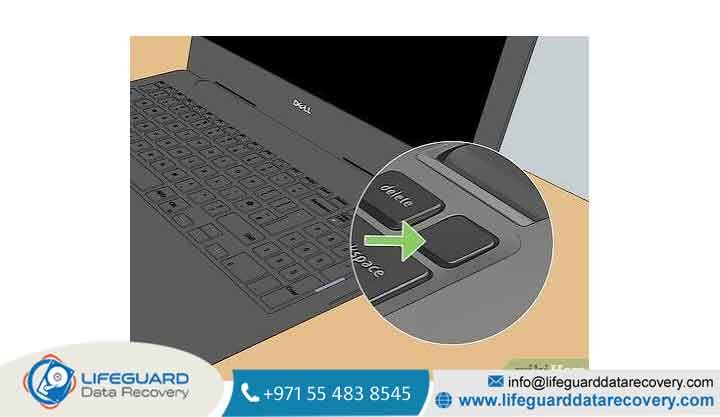
You don’t need to unscrew the back cover at all! Just press and hold down the main power button continuously for 15 to 20 seconds. This cuts off power straight at the hardware level, just like pulling out the battery.
Will pulling the CMOS battery or resetting RTC delete my personal files?
Nope, not at all! Resetting the RTC or CMOS only sets system hardware options like the time, date, and boot order back to original factory settings. All your photos, personal documents, and files on the hard drive stay completely safe.
Why is my Dell laptop stuck on the Dell logo screen?
Getting stuck on the logo screen means the laptop turned on fine, but it can’t load the operating system or find the hard drive. Unplug all USB accessories, then run the F12 diagnostic test to see if your hard drive is working properly.
How can I tell if my Dell AC adapter brick is bad?
Check the small LED light built into the power brick or plug tip. If the light stays dark when plugged into a known good wall socket, or if it flickers and goes out when connected to your laptop, the charger is likely damaged.


