+971 50 217 6793 Abu Dhabi, UAE [email protected]

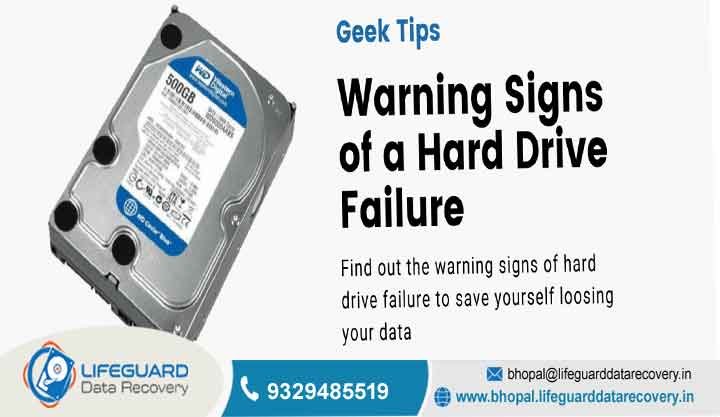
hard disk failure symptoms
Critical Hard Disk Failure Symptoms Early Warning Signs & Emergency Fixes Hard drives almost never just die out of nowhere. Spotting these hints early is honestly the most important thing if you want to save your precious files before it’s too late.
lifeguard datarecovery reports testing thousands of computer drives show that traditional hard disks (HDDs) have about a to chance of failing in their first few years. But after 3 to 5 years of daily use That failure rate jumps up a lot. Catching these hard drive failure warning signs early gives you enough time to copy your family photos, work documents, and backups before the drive completely dies on you.
What Is Hard Disk Failure
Simply put, hard drive failure just means your storage drive can’t properly read, write, or save your files anymore. Unlike modern SSDs which use silent memory chips like a big thumb drive old-school HDDs have physical moving parts inside. They have shiny magnetic platters spinning super fast (around rounds per minute!) while a tiny read/write needle floats just a tiny microscopic gap above it.
To figure out what’s wrong when you see hard disk failure symptoms, it helps to know the three main ways a drive can break down:
1. Physical & Mechanical Failure
This happens when the moving mechanical parts inside the drive’s sealed box wear out or break. The absolute worst case is a “head crash this is when the tiny reading head physically touches the spinning platter, scratching off the magnetic layer and making a mess inside that ruins your files every second the drive stays turned on. Other times, the tiny motor inside just gets stuck. Physical problems like this usually need professional hard drive data recovery services where experts open the drive in a super-clean, dust-free lab room.
2. Logical & File System Failure
With logical issues, the physical parts inside are actually working fine, but the software organization system inside gets completely messed up. Corrupted boot files or damaged file structures (like NTFS or FAT32) make Windows or Mac think the drive is empty or broken. When this happens, your computer might say the drive is “RAW”, ask you to format it, or show that your folders are missing.
3. Electronic & Firmware Failure
Power surges, sudden power cuts, or cheap power supply units can easily burn out tiny chips or fuses on the green circuit board (PCB) attached to the drive. Also, if the drive’s built-in hidden software (firmware) gets corrupted, your computer motherboard won’t even recognize what kind of drive is plugged in.
Warning Signs of Hard Drive Failure You Should Never Ignore
If you catch these failing hard drive symptoms early, you still have a chance to rescue your important stuff. Keep an eye out for these ten red flags:
1. Unusual Mechanical Noises (Clicking, Grinding, Beeping)
If you start hearing a repetitive clicking hard drive sound people in tech call this the “Click of Death”—it means the reader arm is trying to scan the disk, failing to read the data, snapping back to start, and trying over and over again.
If you hear a harsh grinding or scraping noise, that’s really bad news: it means the metal head is physically scratching the spinning disk surface.
2. Extreme System Slowdowns & Task Manager Spikes
Is your PC experiencing sudden, terrible slow hard drive performance? This causes annoying computer freezes due to hard drive slowdowns and pushes your Task Manager Disk Usage to 100%, even if you aren’t running any heavy apps!
3. Corrupted Files, Missing Data & Read/Write Errors
When files that worked completely fine yesterday suddenly give errors like “File Format Not Recognized”, or if you notice files disappearing from hard drive folders out of nowhere, the magnetic layer on your drive is starting to fade. As these areas weaken, you’ll see more hard drive read/write errors, making it impossible for your PC to load the full file properly.
4. Blue Screen of Death (BSOD) & Frequent System Crashes
Getting random blue screen errors or experiencing frequent system crashes hard drive issues (with error codes like KERNEL_DATA_INPAGE_ERROR) usually means Windows core system files are sitting on bad spots of the disk. When Windows tries to read those broken areas to keep running, it can’t load the file and crashes immediately to protect itself.
5. Hard Drive Not Detected or “Operating System Not Found”
If you turn on your desktop or laptop and see a black screen saying “Operating System Not Found”, “Insert Boot Media”, or if you get a hard drive not detected message in your BIOS screen, your computer has lost connection with the drive completely. This means a serious hard disk boot failure caused by bad partition files, damaged circuit boards, or firmware issues.
6. Accumulation of Bad Sectors
Bad sectors on hard drive platters are basically tiny microscopic spots on the disk that can’t hold data properly anymore. They come in two flavors:
Hard Bad Sectors: Caused by physical drops, wear and tear, or tiny dust getting inside. These are permanent physical damages.
Soft Bad Sectors: Caused by sudden power loss or crashes while writing a file. These can usually be wiped clean and fixed using software tools.
7. S.M.A.R.T. Diagnostic Error Warnings at Boot
Modern hard drives have an automated self-checking system called S.M.A.R.T. (Self-Monitoring, Analysis, and Reporting Technology). If your computer displays a S.M.A.R.T. health warning when you turn it on, the drive’s built-in memory has logged serious hardware issues that passed safe limits.
8. Abnormally High Drive Temperatures
It’s normal for hard drives to get warm when you copy big files, but if the drive casing gets super hot to touch (above 55°C / 131°F), it usually means internal parts are rubbing together too hard, airflow is blocked, or the electronic board is overheating. These hard drive overheating symptoms dry up internal lubricants and make parts break down much faster.
9. Frequent File Transfer Stalls and I/O Device Errors
When you try to copy a movie or folder and the speed suddenly drops to 0 MB/s and gets stuck there—or gives an annoying “I/O Device Error” popup your operating system lost connection because the drive took too long to read the data.
10. Vanishing Partitions Showing as “RAW” or “Unallocated”
If your D: drive or external disk suddenly disappears from File Explorer and shows up as “RAW” or “Unallocated” in Windows Disk Management the drive’s main partition table got corrupted, making Windows forget how to read your files.
What Causes Hard Drive Failure? (Key Risk Factors)
Dropping an external drive while it’s spinning forces the floating needle to slam right onto the disk, creating instant scratches and bad sectors.
Overheating & Poor Airflow: Dust buildup inside your computer desktop or laptop keeps heat trapped inside. This extra heat makes tiny metal parts expand, which ruins the super tight alignment needed for the reading needle to work right.
Unstable Electricity & Power Outages: Sudden power cuts or electricity surges can fry the protective chips on the drive’s green circuit board, damaging the controller or corrupting internal data mid-write.
How to Recover Data and Fix a Failing Hard Drive
Emergency Steps to Take Right Away
Stop Saving New Things: Don’t download new files, install software, or update Windows on the failing drive.
Copy the Most Important Files First: Grab your essential documents, spreadsheets, and personal photos first before trying to copy huge games or full system backups.
Dangerous DIY Myths You Should Avoid
The Freezer Trick Myth: Putting a broken hard drive in the freezer is a really bad idea. Once you take it out, tiny water droplets condense directly on the magnetic disk inside. When you power it on, those water drops destroy the mag
Opening the Drive Case at Home: Opening a hard drive casing outside a proper cleanroom exposes the shiny platters to dust in the air. A single tiny speck of dust is way bigger than the tiny gap where the reader head floats, causing instant scratches as soon as it spins!
If you’re dealing with corrupted software files or a RAW partition, you can try using reliable data recovery software. But if it’s a physical noise issue, it’s safer to get a cleanroom hard drive repair evaluation from experts.
Easy Ways to Prevent Hard Drive Failure & Keep Data Safe
Follow the 3-2-1 Backup Rule: Keep 3 total copies of your important files on 2 different storage types (like your laptop and an external drive), with 1 copy kept offsite or in cloud storage.
Use a UPS Surge Protector: Connect your desktop computer or NAS storage to an Uninterruptible Power Supply (UPS) battery so sudden power cuts and voltage spikes won’t fry your system.
Keep Your PC Clean & Cool: Dust off your PC fans regularly so air can flow easily, and make sure your hard drive stays comfortably below 40°C (104°F).
Always Safely Remove USB Drives: Always click “Safely Remove Hardware and Eject Media” in your Windows tray before pulling out external hard drives so it finishes writing files properly.
Keep an Eye on Drive Health: Use simple drive monitoring tools like enterprise storage health checkers running in the background to alert you if bad sectors start building up.
Frequently Asked Questions (FAQs)
Can a failing hard drive still work for a while?
Yes, a drive with minor bad sectors can sometimes keep working for days or weeks. But it will get slower and slower, crash more often, and can completely die at any random moment without warning!
How do I know if it’s my HDD or SSD that is failing?
Mechanical HDDs usually give clear warnings like clicking noises, slow file copying, and bad sector alerts. Solid State Drives (SSDs) fail silently without any sounds usually showing symptoms like suddenly locking into read-only mode, missing boot drives, or random blue screen crashes.
Can a broken hard drive be fixed and used normally again?
If it’s just software corruption or soft bad sectors, you can usually fix it by formatting or repairing the drive partition. But if physical internal parts like read heads or platters are damaged, you can’t fix it for daily use again. Experts can only temporarily bypass the damage inside a cleanroom to get your files back.
How long will a hard drive last after it starts making clicking noises?
Once a drive starts making physical clicking noises, it can die within minutes or a couple hours of power time. It’s best to turn it off right away to keep your files safe!


