+971 50 217 6793 Abu Dhabi, UAE [email protected]

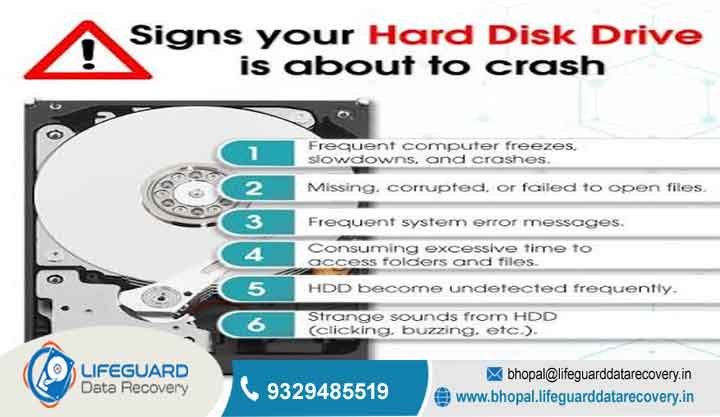
hard drive crash symptoms
Hard Drive Crash Symptoms Critical Signs Your Disk Is Failing Is your computer taking forever to open simple documents, randomly freezing during basic tasks, or making strange metallic noises? Storage drive failures rarely happen completely out of nowhere.
lifegaurd datarecovery Recognizing early hard drive crash symptoms is often your only line of defense between performing a quick, painless file backup and suffering permanent, catastrophic data loss.
Whether you rely on a classic spinning hard disk drive (HDD) in a desktop PC or a fast solid-state drive (SSD) in a modern laptop, understanding how storage hardware degrades allows you to act before your device becomes completely unreadable.
This comprehensive, step-by-step diagnostic guide breaks down the physical, acoustic, and system-level warning signs of drive failure, explains key technical differences between HDD and SSD breakdowns, and provides a strict emergency action plan to protect your irreplaceable data.
Hard Drive Failure Types Mechanical vs. Logical Failure
Before diving into specific symptoms, it helps to understand the underlying mechanics of how storage devices fail. Hard drive failures generally fall into two distinct categories: physical (mechanical) damage and software-level (logical) corruption. Distinguishing between the two determines whether your data can be rescued using simple software tools or if it requires specialized hardware recovery.
Mechanical Failure Symptoms (Physical Damage)
Mechanical failure occurs when the physical internal moving parts of a traditional hard disk drive degrade, misalign, or physically break. The most common causes include read/write head crashes, failed spindle motors, or damaged Printed Circuit Boards (PCBs). Because mechanical failure involves physical hardware friction and component wear, it almost always produces distinct acoustic warning cues like clicking, grinding, or high-pitched squealing.
Logical Failure Symptoms (Data Corruption)
Logical hard drive failure happens when the physical components of the drive remain entirely intact, but the software structure, partition table, or file system becomes corrupted. This can be caused by malware infections, sudden power outages during write cycles, or improper system shutdowns. Symptoms include disappearing files, blue screen error loops, and raw or inaccessible partitions. Unlike mechanical failures, logical failures can often be repaired using software utilities—provided the underlying hardware remains physically healthy.
Acoustic Warning Signs: Clicking, Grinding, or Humming Sounds
Unusual sounds originating from your computer tower or laptop casing are among the clearest clicking hard drive symptoms. Healthy mechanical hard drives produce a low, gentle whirring sound when spinning up, accompanied by soft tapping during read/write activity. Harsh noises indicate immediate physical distress:
The “Click of Death”: Occurs when the read/write head assembly attempts to locate alignment marks on the magnetic platter, fails due to damage or misalignment, and snaps violently back to its parked position. This creates a rhythmic, repeating clicking sound.
Grinding or Metallic Scraping: Indicates that the read/write head has made direct physical contact with the spinning platter (a head crash), or that the precision spindle bearings holding the drive platters have completely worn out.
High-Pitched Buzzing or Whining: Points to a seized spindle motor that is trying to draw power but cannot rotate the drive platters.
critical Risk Warning: If your drive is actively clicking or grinding, shut down your system imediately. Continuing power delivery causes the floating read/write heads to scrape magnetic coating off the platters, turning your data into fine dust and making professional recovery impossible.
System Freezes, Blue Screen of Death (BSOD), and Frequent Crashes
Frequent operating system freezes or sudden Blue Screens of Death (BSOD in Windows or Kernel Panics in macOS) often serve as early failing hard drive symptoms.
When Windows attempts to access vital operating system files, user registry settings, or application binaries stored on physical sectors that have begun to degrade, the drive experiences read timeouts. Unable to retrieve the requested data within designated hardware limits, the operating system halts entirely to prevent wider data corruption, throwing codes like.
Unusually Slow Read/Write Speeds and File Access Times
If opening a modest 5 MB PDF file takes several minutes, or if copying a folder of family photos causes Windows File Explorer to freeze completely, your drive is exhibiting classic symptoms of hard disk crash.
When magnetic media or flash memory cells degrade, the storage controller attempts multiple internal retry routines to read the weak signals. During these retry operations, the drive consumes nearly 100% of its processing capacity, leaving your operating system waiting in line and causing severe system-wide lag.
Random File Corruption, Disappearing Folders, and Access Errors
Data corruption is a direct indicator that the underlying storage medium can no longer hold an accurate electrical or magnetic state. Key warning flags include:
Files failing to open while throwing error prompts such as “File Format Not Recognized” or “The file is corrupted and cannot be opened.”
Folders that previously contained hundreds of documents suddenly appearing completely empty.
Text documents or spreadsheets opening with scrambled, unreadable characters, or corrupt media files displaying gray blocks across images.
As sectors fail, the operating system loses the ability to parse file allocation metadata (such as the Master File Table or inode tables), causing files to become fragmented or orphaned.
Hard Drive Not Detected by OS or BIOS/UEFI
Experiencing hard drive not detected symptoms points to an advanced hardware issue. You might power on your desktop or laptop only to be met with a message stating “No Boot Device Found,” “Insert Boot Media,” or a folder icon with a question mark on macOS.
When a drive stops appearing in File Explorer, Disk Management, or even the motherboard’s underlying BIOS/UEFI setup utility, it typically indicates one of three severe conditions:
Complete failure of the Printed Circuit Board (PCB) due to electrical surges.
Firmware corruption on the drive’s internal controller chip.
Seized mechanical components that prevent the drive from identifying itself to the host controller during power-on self-tests.
Accumulation of Bad Sectors (CHKDSK Warning Flags)
Storage drives are logically divided into millions of individual storage regions called sectors. Over time, individual sectors can lose their physical or magnetic integrity:
Soft (Logical) Bad Sectors: Caused by sudden power loss or interrupted write operations that leave incorrect Error Correction Code (ECC) data on the disk.
Hard (Physical) Bad Sectors: Caused by physical manufacturing defects, thermal expansion, dust contamination inside the sealed drive casing, or physical impacts.
Modern hard drives are engineered with spare factory sectors set aside specifically to replace failing ones automatically. However, when you notice a continuous buildup of bad sectors during automated disk checks, it means your drive has exhausted its spare capacity, and total drive failure is imminent.
S.M.A.R.T. Errors and Health Warnings During System Boot
Modern internal storage hardware includes built-in diagnostics called S.M.A.R.T. (Self-Monitoring, Analysis, and Reporting Technology). S.M.A.R.T. constantly tracks internal hardware operational parameters such as error rates, temperature history, spin-up time, and reallocated sector counts.
If your computer displays a S.M.A.R.T. failure warning during initial boot-up, the storage controller has detected that one or more vital hardware parameters have exceeded safe operational thresholds. Treat this alert as a definitive instruction to secure your files immediately.
Extreme Operating Overheating and Thermal Throttling
While computer hardware naturally runs warm during heavy workloads, a hard drive that becomes uncomfortably hot to the touch during simple idle states is suffering from severe internal stress.
Excessive heat generation in HDDs is usually caused by failing spindle bearings creating mechanical friction or shorted electrical components on the logic board. Heat accelerates the degradation of internal lubrication and causes platter expansion, while in SSDs, high heat degrades NAND flash memory cells rapidly. Operating temperatures consistently above significantly shorten a drive’s operational life.
OS Boot Loops and “Operating System Not Found” Errors
When sectors containing critical boot partition files such as the Master Boot Record (MBR), GUID Partition Table (GPT), or Windows system binaries suffer physical degradation, your computer cannot load into the operating system.
HDD vs. SSD Warning Signs: Important Differences
Traditional Mechanical Hard Disk Drives (HDDs) and modern Solid-State Drives (SSDs) utilize fundamentally different methods to store data. HDDs rely on spinning magnetic platters and moving actuator arms, whereas SSDs store data electronically inside non-volatile NAND flash memory chips controlled by an integrated processor. Because of these structural differences, their failure patterns vary considerably
While an HDD gives plenty of acoustic and performance warnings as its moving parts wear down, an SSD can work perfectly one moment and become completely unresponsive the next due to a bricked controller chip. Understanding these behavioral differences ensures you don’t overlook warning signs simply because your silent laptop drive isn’t making noise.
Immediately Stop Using the Drive and Power Down
Do not continue browsing the web, downloading software, playing games, or editing videos. Every single background operation involves read/write cycles that write temporary cache files to the disk. On a physically degraded drive, every added cycle increases the risk of complete hardware failure.
Avoid Running Heavy Stress Tests or CHKDSK Scans
When users encounter drive errors, their first instinct is often to launch command-line repair tools like or perform comprehensive surface diagnostic scans.
Major Warning: Built-in Windows utilities like are designed to fix software file systems not physical hardware failures. Running forces the drive controller to forcefully read, move, and write data across every single physical sector on the disk. If your drive is suffering from failing read/write heads or magnetic platter damage, forcing a full sector scan will cause the drive heads to grind directly across the disk platters, destroying your data completely.
Prioritize Critical Files First
If the drive is still bootable and recognized by your system:
Connect a fresh, healthy external drive or USB flash drive.
Manually copy your absolute most important individual files first such as tax returns, critical work documents, or irreplaceable family photographs.
Avoid trying to copy giant system folders or running full-disk cloning software right away. Save small, critical documents first before attempting heavy system-wide operations
Use Safe Third-Party Health Diagnostic Utilities
For a far more detailed look at raw sector health and S.M.A.R.T. counters, install lightweight, non-intrusive monitoring utilities:
CrystalDiskInfo (Windows): A free utility that passively reads S.M.A.R.T. tables and displays clear drive health status percentages (Good, Caution, or Bad) along with temperature telemetry and bad sector counts.
DriveDx (macOS): An advanced diagnostic tool tailored for Macs that monitors physical drive health indicators and warns you about impending hardware failures before macOS detects them.
Smartmontools (Windows/macOS/Linux): A command-line utility used by system administrators to run deep passive telemetry queries on local drives.
Physical Impact, Kinetic Shock, and Vibrations: Dropping a running laptop or bumping a desktop tower while its internal hard disk platters are spinning at 7,200 RPM forces the floating read/write head assembly to bounce and slam directly into the delicate magnetic platters.
Power Surges and Voltage Instability: Sudden power outages, lightning strikes, or cheap, unstable computer power supplies can push excess voltage through the drive’s controller logic board (PCB). This instantly burns out sensitive capacitors, TVS diodes, and control chips.
Heat Buildup and Restricted Airflow: Inadequate case ventilation, dust-choked cooling fans, and clogged laptop vents raise ambient internal temperatures. High heat breaks down bearing lubricants in HDDs and accelerates electron leakage in SSD NAND flash cells.
Natural Component Wear and Aging: All computer hardware has a finite operational lifespan. Mechanical bearings eventually dry up, read/write heads lose magnetic alignment, and SSD flash memory cells exhaust their program/erase (P/E) endurance cycles after years of continuous writing.
How to Prevent Hard Drive Crashes and Protect Your Data
While hardware failure is an inevitable reality over long enough time horizons, implementing smart maintenance habits ensures that a failing drive never results in lost files:
Implement the 3-2-1 Backup Strategy: Maintain at least 3 total copies of your data across 2 different storage media types (such as an internal drive and a dedicated external hard drive), with 1 copy stored securely off-site in cloud backup storage.
Keep Internal Components Cool and Dust-Free: Regularly clean out dust buildup from desktop PC cases and laptop air vents using compressed air to maintain low ambient drive operating temperatures.
Use an Uninterruptible Power Supply (UPS): Connect desktop setups and external storage enclosures to a quality UPS battery backup. This protects your hardware from sudden voltage spikes and allows your system to shut down safely during unexpected power outages.
Frequently Asked Questions (FAQs)
Can a crashed hard drive be fixed?
If the crash is caused by logical software errors, missing partition maps, or minor file corruption, software recovery tools can often repair the file system or extract missing files. However, physically damaged hard drives—such as those with clicking read/write heads, shorted logic boards, or seized motors cannot be repaired using software. Restoring data from physically damaged drives requires specialized cleanroom facilities where technicians can swap damaged internal components under sterile environmental conditions.
How long does a hard drive last before failing?
On average, traditional spinning hard disk drives (HDDs) last between 3 to 5 years under standard daily usage. Solid-State Drives (SSDs) generally last longer often 5 to 8 years depending on the drive’s overall build quality, heat management, and total accumulated write volume (terabytes written / TBW).
Why is my hard drive making a clicking noise?
A rhythmic clicking noise means that the drive’s internal actuator arm is failing to calibrate properly against the data tracks on the magnetic platters. It sweeps across the disk, hits an error, and snaps violently back to its parked position to try again. This indicates critical mechanical failure; unplug the drive immediately to preserve your data.
What is the difference between bad sectors and a complete drive crash?
A bad sector is an isolated, small cluster of storage space that has lost its ability to reliably store or read data. Modern drives routinely reallocate minor bad sectors without major issues. A complete drive crash occurs when vital mechanical components, internal firmware, or key file allocation structures suffer total failure, rendering the entire drive unreadable by your operating system.


