+971 50 217 6793 Abu Dhabi, UAE [email protected]

hard disk drive not installed
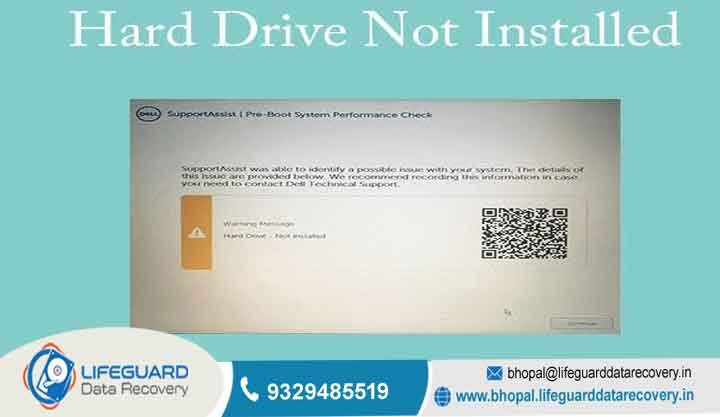
hard disk drive not installed Complete Emergency Guide Drive Crash Data Recovery & Fixes for Hard Disk Drive Not Installed Facing a computer that suddenly displays a hard disk drive not installed error or fails to boot into your operating system can be alarming.
lifeguard datarecovery Whether your system reports an HDD not found error in the boot screen or your internal hard drive is not detected inside Windows Disk Management, taking the wrong troubleshooting steps early on can lead to irreversible data loss.
Storage devices operate under fragile hardware constraints and file system structures. When a system loses communication with a drive, every power cycle, automatic repair attempt, or forced write operation risks making temporary corruption permanent.
This comprehensive guide provides a systematic, data-safe troubleshooting strategy to diagnose drive recognition failures, safely execute drive crash data recovery, and restore your system or files to working order.
Emergency Checklist What to Do First Before Fixing Drive Recognition Errors
When a storage device encounters errors, jumping straight to invasive repair tools such as forced formatting, partition table rebuilds, or command-line disk repairs can permanently destroy recoverable files. Before attempting hardware adjustments or operating system fixes, execute this preliminary safety protocol.
Stop Using the Drive Immediately If You Hear Clicking, Grinding, or Beeping
Mechanical hard disk drives (HDDs) rely on precision engineering: magnetic platters spin at speeds between and while read/write heads hover on an air cushion just nanometers above the surface.
Physical Symptoms Continuous clicking grinding, metallic scraping, or rhythmic high-pitched beeping sounds indicate hardware failure.
Mechanical Failure Causes: Common culprits include a head crash (read/write head making direct contact with platters), spindle motor seizure, or stuck read/write heads (head sticktion).
Action Required: Power down the machine immediately. Every second a mechanically damaged drive spins, the head scrapes the magnetic coating off the platter, creating fine dust and destroying the data layer. In these scenarios, software tools cannot repair the drive, and running them guarantees permanent data loss.
Physical & Hardware Causes
Cable Degradation & Connection Problems: A loose SATA data cable, damaged power connector, or oxidation on M.2 connector pins will trigger a hard drive connection problem, cutting off signal transmission to the motherboard.
Drive Controller Board (PCB) Failure: Power surges or thermal stress can burn components on the drive’s Printed Circuit Board (PCB), such as the Transient Voltage Suppressor (TVS) diodes or controller IC, rendering the drive completely lifeless.
Spindle Motor & Actuator Failures: Over time or following a drop, the bearings holding the spindle motor can seize, preventing the drive from spinning up to operational speed.
Motherboard Bus & Port Damage: Solder micro-fractures or failing SATA/PCIe controllers on the motherboard can mimic a dead storage drive.
Logical & Firmware Causes
Corrupted Master Boot Record (MBR) or GPT Structure: Power outages during write operations can corrupt the boot sector or GUID Partition Table, leaving the operating system unable to identify partition boundaries.
Storage Controller Mode Misconfigurations: Switching between AHCI, Legacy IDE, or Intel VMD/RAID modes in the BIOS alters how the motherboard handles disk I/O, frequently producing a hard disk drive installation problem during boot.
Outdated or Missing Controller Drivers: Corrupted IDE ATA/ATAPI drivers or missing NVMe storage drivers in Windows prevent the operating system from initializing the drive during bootup.
Firmware Microcode Corruption: Storage drives run onboard microcode to manage bad blocks and internal operations. If the drive’s internal Service Area (SA) suffers corruption, the drive will fail initialization and report as uninstalled.
Fixing “Hard Disk Not Showing in BIOS”
If your computer reports a hard drive missing from BIOS or displays hard disk not detected by computer during the initial Power-On Self-Test (POST), the motherboard’s low-level firmware cannot negotiate a hardware handshake with the drive. Start with these fundamental hardware and BIOS checks.
Verify Physical Connections and Reseat Internal Drive Cables
For desktop setups or accessible laptop slots, resolving a laptop hard drive not detected issue often comes down to seating and physical contacts Power off the computer completely, disconnect the main power cable, and remove the laptop battery if detachable.
Press and hold the chassis power button for 15 seconds to drain residual electrical charge from system capacitors.
Open the access panel and carefully disconnect both the SATA data cable and power cable from the drive (or unfasten the retention screw and remove the M.2 SSD).
Inspect the gold contact pins for corrosion, dust, or physical bending. Clean contacts using isopropyl alcohol and a lint-free swab. Reinsert the drive firmly, secure the connectors, and test on a different SATA port or PCIe slot if available.
Adjust SATA/NVMe Controller Settings (AHCI / RAID / Intel VMD Mode)
Modern laptops and desktops built on recent Intel or AMD platforms utilize hardware storage controllers that require specific settings to expose drives to the operating system:
The Fix: If you recently reinstalled Windows or reset your BIOS and are encountering an HDD installation issue, toggle between AHCI and Disabled VMD Mode. If Windows was installed under AHCI, enabling VMD will obscure the drive during boot, triggering a “hard disk not installed” error.
Resolving Hard Disk Drive Not Found in Windows & OS
When your BIOS successfully recognizes the storage hardware but Windows displays a hard disk not recognized warning or missing volume in File Explorer, apply these operating system-level fixes.
Corrupted driver stack files can prevent Windows from communicating with a functional hard drive:
Press Win + X on your keyboard and select Device Manager from the administrative menu.
If a yellow warning triangle appears next to any controller:
If a secondary internal hard drive or newly added SSD suffers a hard disk drive not found error in File Explorer:
Run Built-In Hardware Diagnostics
Hardware manufacturers provide low-level pre-boot diagnostic suites stored in motherboard ROM to verify storage health independent of the operating system:
Dell Systems: Turn on the machine, tap F12 at the Dell splash screen, and select Diagnostics from the menu to run the enhanced Pre-boot System Assessment (ePSA).
If these diagnostics yield error codes similar to those listed above, the drive has suffered hardware failure and must be retired to prevent further data loss.
Drive Crash Data Recovery How to Safely Retrieve Files from an Unrecognized Drive
When executing drive crash data recovery on an unstable, degraded, or mechanically weak drive, minimizing read stress is vital. Standard recovery software stresses drives by hammering sectors repeatedly during deep scans. Follow this staged recovery pipeline instead.
Create a Sector-by-Sector Disk Image First
Never run file recovery applications directly against a drive exhibiting bad sectors or unstable hardware behavior. Instead Connect a spare, healthy target drive with equal or greater storage capacity than the source drive.
Boot into a forensic live environment (such as an OS installed on a USB drive) or use disk cloning utilities designed to handle bad sectors
Command the tool to perform a sector-by-sector clone or generate a raw image file Unlike standard copy operations, sector cloning reads sectors sequentially in a single pass, bypassing file system logic.
Once imaging completes, power off the degraded drive and perform all subsequent file extraction steps using the raw image file.
Recover Files Using Bootable Data Recovery Media
If Windows fails to boot due to a hard disk drive not installed system error Use a secondary working PC to download a bootable PE (Preinstallation Environment) creation tool or live Linux distribution.
Flash the environment onto a USB flash drive (minimum 8GB capacity).Insert the USB drive into the unbootable system, power on, and enter the boot menu Select the USB drive as the temporary boot device.
Once inside the live environment, launch integrated partition recovery tools or manually copy essential documents, databases, and photos to an external storage drive.
Monitor SMART Health Metrics Regularly
Storage drives utilize Self-Monitoring, Analysis, and Reporting Technology (SMART) to log internal hardware operational parameters. Monitoring these counters helps catch impending failures before data is lost:
Open Command Prompt as Administrator Type and press Enter.
A result reading indicates basic firmware parameters are within operational limits. For deep attribute inspection, use open-source drive diagnostic utilities to check these specific critical attributes:
Frequently Asked Questions (FAQs)
Why does my laptop say “Hard Disk Drive Not Installed” after an update?
This issue typically occurs when a major Windows feature update overwrites custom motherboard storage controller drivers (such as Intel RST or VMD drivers) with default Microsoft drivers. It can also happen if the update alters your UEFI bootloader entries or resets fast startup configurations, leading to boot order corruption.
Can I recover data from a hard drive that is not recognized in BIOS?
If a drive fails to initialize or appear in the BIOS across multiple systems, standard software utilities cannot access its storage sectors. Recovery requires physical repair such as PCB micro-soldering, firmware chip swapping, or donor component replacement executed within a specialized cleanroom laboratory before data can be extracted using hardware imagers.
Is running CHKDSK safe when my hard drive is failing?
No. Tools like are designed to fix file system consistency on stable media. They operate by aggressively reading, writing, and remapping data across damaged sectors. If applied to a drive experiencing physical degradation or head instability, running CHKDSK can strain read/write components, causing permanent mechanical failure and data loss.
What is the difference between a logical drive crash and a physical drive crash?
A logical drive crash occurs when the underlying hardware remains fully operational, but file system structures, partition tables, or boot files become corrupted . A physical drive crash means the hardware itself is damaged such as broken read/write heads, a seized spindle motor, or fried PCB components requiring hardware repair to restore drive communication.


