+971 50 217 6793 Abu Dhabi, UAE [email protected]

Can corrupted SD cards be fixed?
Can Corrupted SD Cards Be Fixed (Step-by-Step Data Recovery & Repair Guide) Discovering that your SD card is suddenly unreadable, throwing error messages, or showing zero files can be alarming especially when it holds irreplaceable personal photos, client projects, or essential documents. The immediate question on your mind is can corrupted SD cards be fixed?
lifeguard datarecovery This comprehensive guide breaks down how SD card corruption occurs, how to safely extract your files before attempting fixes, step-by-step methods to repair a damaged memory card across Windows and Mac, and how to prevent data loss in the future.
Diagnostics Logical Corruption vs. Physical Damage
Before attempting any repairs, you must determine whether your memory card is suffering from a soft (logical) error or a hard (physical) failure. Applying software repair tools to a physically failing card can permanently destroy the NAND flash chip inside.
Common Symptoms of an Unreadable or Corrupted SD Card
Recognizing the warning signs of memory card degradation allows you to intervene early before total drive failure occurs. If you notice any of the following symptoms, stop writing new data to the card immediately:
Drive Prompts Format Request Automatically: Inserting the card into your PC, camera, or phone triggers an automatic popup warning: “You need to format the disk in drive before you can use it. Do you want to format it now
RAW File System Status in Disk Management: Checking the drive’s file system properties reveals that it has changed from FAT32 or exFAT to RAW, indicating that the operating system no longer recognizes the file allocation table.
Persistent Write-Protected Errors: The memory card prevents you from adding new files, editing existing documents, or deleting items, effectively locking itself into a permanent read-only state.
Device-Specific Error Codes: Digital cameras, Nintendo Switch consoles, Steam Decks, or Android smartphones throw explicit hardware access.
Why Do SD Cards Get Corrupted?
SD cards rely on solid-state NAND flash memory managed by a tiny onboard controller chip. Unlike traditional mechanical hard drives, they have no moving parts, but their delicate electronic file structures remain vulnerable to several distinct failure modes:
NAND Flash Cell Wear and Bad Sectors
NAND flash memory cells endure a finite number of write/erase cycles (typically between 3,000 and 10,000 cycles depending on whether the card uses SLC, MLC, or TLC flash). As cells age and fail, they create “bad sectors” that break contiguous file structures.
Power Disruptions and Weak Batteries
Shooting high-bitrate 4K video or capturing rapid burst photos when your camera battery is near zero can cause sudden power loss mid-write. This leaves open file handles and causes header corruption across your media files.
Cross-Device File System Conflicts
Using the same SD card across multiple operating systems or hardware devices (such as moving an SD card directly from an Android phone into a Mac, then into a digital camera) without formatting it natively in each device can create conflicting partition tables.
Counterfeit and Low-Quality Memory Cards
Fake SD cards purchased from unverified online sellers often reprogram the controller firmware to report a fake capacity (e.g., displaying 512GB on a drive that physically contains only 16GB of actual storage). Once your files exceed the true 16GB limit, the card silently overwrites existing data headers, causing severe corruption.
Immediately Cease All Write Operations
As soon as you suspect corruption, eject the SD card. Do not attempt to capture new photos, record video clips, or copy new files to the card. Writing new data overwrites the sectors where lost or deleted file signatures still exist, making recovery impossible.
Create a Byte-to-Byte Disk Image (Clone the Card)
Directly scanning a corrupted or degrading SD card using data recovery tools subjects the fragile flash controller to intense read cycles, which can trigger complete hardware failure mid-scan. Creating an exact byte-to-byte clone allows you to scan the drive safely off-card from your computer’s high-speed internal storage.
Connect the SD card to your computer via a reliable USB card reader.Download a dedicated disk-imaging tool (such as FTK Imager, Win32 Disk Imager, or native utility on Linux/macOS). Select your corrupted SD card as the Source Drive.Set the destination output to an internal drive on your PC and save the raw image file.Mount this newly created disk image as a virtual drive to perform file recovery safely without touching the physical hardware.
Run SD Card File Recovery Software
With your disk image safely stored on your internal drive, run specialized data recovery software to scan for lost files and photos:
Launch a respected data recovery utility (such as Disk Drill, PhotoRec, R-Studio, or Recuva). Direct the software to scan your virtual disk image or mounted SD card drive letter. Initiate a Deep Scan (Signature Scan). This process searches raw binary data for recognizable file signatures Preview the recoverable files within the software interface to confirm file integrity.
Export and save the recovered files to a completely separate local drive (e.g., your computer’s Desktop or an external SSD). Never save recovered data back onto the corrupted SD card.
Quick Hardware & Environment Troubleshooting
Sometimes an SD card appears corrupted due to a dirty connector, a faulty adapter, or an outdated system driver rather than actual flash memory failure. Run through these zero-risk hardware checks first:
Clean the Contact Pins and Check for Micro-Cracks
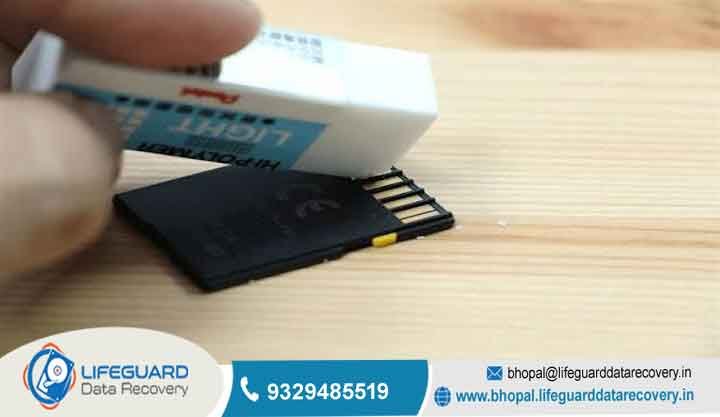
Inspect the gold-plated contact pins on the back of the card under good lighting. Dust, dirt, hand oils, and oxidation can isolate pins from the card reader’s contact spring.
Gently clean the gold contacts using a soft pencil eraser or a lint-free micro-fiber cloth lightly dampened with isopropyl alcohol.
Inspect the plastic ribs separating the contacts for small fractures. MicroSD cards in particular are susceptible to hairline cracks along their thin casing, which disrupts internal wiring traces.
Replace the Card Reader and USB Cable
Built-in SD card slots on laptops and cheap USB multi-hub adapters frequently fail or lack the updated firmware required to handle high-capacity
Unplug the current reader and connect the card directly using a high-quality, branded USB 3.0 or USB-C external card reader.
Avoid plugging card readers into unpowered USB hubs or front-panel desktop ports; plug directly into the motherboard ports on the rear of your desktop computer.
Test Across Alternate Operating Systems
Different operating systems handle file system indexes differently. An SD card formatted in exFAT by an Android device or digital camera might encounter mounting issues on older Windows builds, while remaining accessible on macOS or Linux systems.
Plug the card into a Mac computer or a Linux machine. Alternatively, test the card on an Android tablet or phone using a USB-OTG (On-The-Go) adapter to see if the mobile system can read the volume without requesting a format.
Assign or Change the Drive Letter in Disk Management (Windows)
When you connect an SD card to Windows, the operating system assigns it a drive letter If that letter conflicts with a network drive, hidden partition, or internal storage volume, File Explorer will refuse to mount the card properly.
When Software Fixes Fail Professional Services
If your SD card fails to react to any of the software methods outlined above, it has likely reached the end of its physical lifespan or suffered severe hardware damage. Software repair tools cannot resolve physical defects.
Indicators of Severe Hardware Damage:
The card becomes extremely hot to the touch within seconds of being connected to a USB port (indicating an internal power short).Windows Disk Management reports
In these extreme scenarios, your remaining option is to contact a certified professional SD card recovery service.
In a specialized cleanroom laboratory environment, hardware technicians can remove the outer epoxy casing,
desolder the raw NAND flash memory chip, and place it directly into a hardware programmer. By reading the physical memory silicon directly bypassing the dead controller chip—technicians can manually reconstruct your file structures and extract your data.
Proactive Habits to Prevent Card Corruption
While knowing how to repair a corrupted SD card is valuable, implementing proper maintenance habits drastically reduces the chances of experiencing unexpected data loss in the future:
Always Safely Eject Your Storage Media
Never pull an SD card out of your computer, camera, or phone while file operations are underway. On Windows, click the Safely Remove Hardware and Eject Media icon in the system tray before unplugging. On macOS, drag the drive icon to the Trash can (Eject) first.
Format Memory Cards Native to the Device
Instead of deleting photos and videos manually using your computer’s File Explorer, format your SD card inside the specific digital camera, audio recorder, or gaming system you plan to use. Device-native formatting builds directory structures tailored specifically to that device’s hardware firmware.
Replace Heavy-Use Memory Cards Periodically
Flash storage is a consumable product with a limited operating life. If you are a professional photographer or videographer recording high-bitrate video daily, replace your primary working SD cards every 2 to 3 years to avoid sudden write-cycle exhaustion.
Frequently Asked Questions (FAQs)
Can I repair a damaged SD card without losing my data?
Yes. By using non-destructive repair methodss uch as changing drive letters, reinstalling device drivers, or running native GUI disk tools you can fix logical index errors without affecting your underlying files. However, to guarantee data safety, always back up your files or create a byte-to-byte image clone before running commands like
How do I recover photos from a corrupted SD card on Android?
If your mobile device reports an unreadable card, turn off your phone, remove the microSD card, and insert it into a PC using a high-quality USB card reader. Run dedicated desktop recovery software to scan the card directly.
Why does my SD card say it is write-protected or locked?
Check the physical lock switch located on the left side of full-sized SD card adapters. If the switch is slid down toward the “Lock” position, the card enters read-only mode. If the switch is unlocked but the card remains write-protected, the onboard controller chip has likely locked itself permanently to prevent further data corruption due to failing NAND flash cells.
Is it safe to continue using an SD card after fixing it?
If the corruption was caused by a soft error (such as an abrupt removal during a file transfer), formatting the card makes it completely safe to use again. However, if the corruption was caused by bad sectors or aging memory cells, the card will likely fail again soon. In those cases, retire the card immediately and replace it with a new one.


