+971 50 217 6793 Abu Dhabi, UAE [email protected]

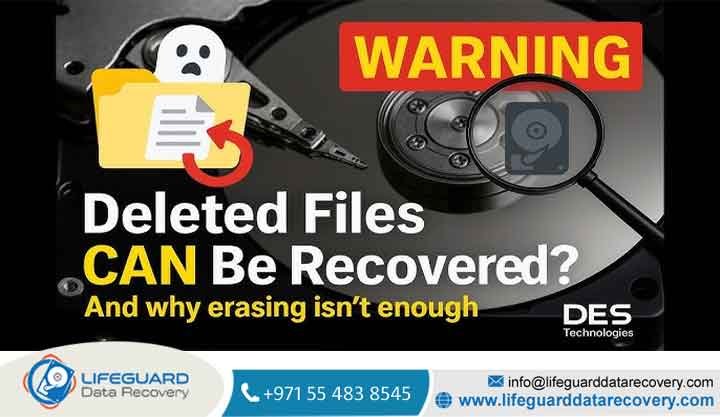
Can deleted files really be recovered?
Can Deleted Files Really Be Recovered The Truth About Data Recovery You know that feeling that sudden, freezing pit in your stomach when you hit on a super important folder. Or maybe you just emptied the Recycle Bin and realized, a single second too late, that your primary tax documents or work files were still inside there. The panic is completely real, and your mind immediately goes to the worst-case scenario. You find yourself asking
The short answer Yes, most of the time you can get them back. But, it isn’t an absolute guarantee. Recovering data is kind of like a high-stakes race against time. It really depends on what kind of storage hardware you are using and how quickly you act after losing the file.
lifeguard datarecovery Let’s break this down into simple, easy-to-understand language and look at how storage works under the hood so you can rescue your lost data before it’s too late.
Where Do Files Go When You Delete Them (What Actually Happens)
When you delete something and empty the trash, your computer’s operating system doesn’t actually wipe the raw data off your drive right away. If it did that every single time you cleaned out a folder, your computer would crawl to a complete stop because erasing large chunks of data takes a lot of processing work.
Instead of doing a deep clean every time, your computer takes a clever shortcut. Think of your hard drive like a massive non-fiction book, and your operating system’s file system like the book’s index at the back.
When you execute a deletion, the computer simply goes into the “index” and erases the pointer—the small reference line that tells the system where that file is physically located.
But the actual file contents (the chapters of the book) are still sitting completely untouched on the storage sectors.
The computer just renames that space as unallocated space. It basically tells the system, “Hey, this area is empty now. You can write new stuff over it whenever you need to save something down the line.”
As long as your device hasn’t saved new files over those exact unallocated spots, the original data stays fully alive. That is exactly why deleted file recovery works so well if you catch it early.
The SSD vs. HDD Reality Check Why Drive Type Changes Everything
This is probably the single most important thing you need to know about modern data recovery—it matters immensely whether your files were stored on an old-school spinning Hard Disk Drive (HDD) or a modern, super-fast Solid-State Drive (SSD).
1. Hard Disk Drives (HDDs): The Forgiving Spinning Platters
Mechanical hard drives are very friendly when you make a mistake. They have magnetic platters that spin around, and an actuator arm that reads data off them. When you delete a file from an HDD, the data just sits on those platters indefinitely. Until you download huge new files that happen to land on those exact tracks, the raw data remains completely safe. If you unplug an HDD immediately after a bad deletion, you have an exceptionally high chance of retrieving everything weeks or months down the road.
2. Solid-State Drives (SSDs): The Aggressive TRIM Problem
If you are trying to recover deleted files from an SSD, things get way more complicated. SSDs don’t use moving parts; they store data electronically on flash memory chips. Because of how flash chips work, an SSD cannot just write new data over an old spot directly—it has to completely erase the old block before it can save anything new.
To keep your laptop running fast, modern operating systems use a background command called TRIM.
When you delete a file on an SSD, the TRIM command immediately signals the drive’s built-in Garbage Collection firmware. It tells the drive, “This space isn’t needed anymore, go ahead and purge it when the system is idle.” So, instead of waiting around for new data to overwrite the space, the SSD actively scrubs those blocks clean in the background.
Best Deleted File Recovery Methods: From Free to Expert
When you need to recover lost files, your plan of attack depends on your current setup. The absolute golden rule here is to stop saving anything to the affected partition. Work your way through these deployment phases orderly.
Checking Native System Backups and Shadow Copies
Before you spend money or download third-party utilities, check if your operating system has automatically saved a backup copy of your directory behind the scenes.
Windows File History: If you had this feature turned on, navigate to the folder where your file used to live, right-click an empty space inside it, select Properties, and click on the Previous Versions tab. If you are lucky, you’ll see a list of older snapshots you can restore with one click.
Mac Time Machine: Open the exact finder directory where your files went missing, click the Time Machine icon in your top menu bar, and use the timeline on the right side to scroll back into the past.
Utilizing Data Recovery Software
If your system backups are empty, you will need to use dedicated data recovery software. These tools bypass the broken file system index and scan the raw data blocks directly, looking for file signatures (like the unique code headers at the start
Recovering Files After a Full Drive Format
Many users think that formatting a storage drive wipes it completely clean like a blank piece of paper. The truth actually depends on the exact type of format you ran:
Quick Format: This simply clears out the master index table and sets up a fresh file system layout. It leaves the underlying data completely untouched. Because of this, you can easily recover deleted files after formatting if it was just a Quick Format.
Full Format: In modern operating systems, running a Full Format does a complete pass across every single sector of the drive, writing zeros over all your data. If a Full Format finishes running on your storage drive, software recovery becomes mathematically impossible.
When to Call the Pros: Professional File Recovery Services
Undelete software tools are excellent, but they are only designed for drives that are working perfectly at a mechanical level. If your data loss is accompanied by strange clicking noises, a drive that won’t spin up, or an operating system that completely freezes whenever you plug the drive in, software will not help you. In fact, running software scans on a physically failing drive will just wear out the components faster and destroy any remaining chance of recovery.
This is the exact moment you need to step away from the computer and contact professional data recovery services.
Professional recovery labs do not use consumer software apps. They use advanced forensic hardware units like the If a mechanical hard drive has a broken read-write head, engineers will take the drive apart inside a certified Class 100 Cleanroom a special room where the air is perfectly filtered so no dust particles can land on the exposed platters. They will manually replace the broken heads or read the flash NAND chips directly using hardware programmers.
How to Prevent Permanent Data Loss Moving Forward
Relying on recovery software is a stressful, defensive way to live. To secure your digital life properly against future accidents, you should move toward an automated, resilient backup framework:
Adopt the 3-2-1 Rule: It is an industry-standard practice that works flawlessly. Keep at least three (3) copies of your files, stored across two (2) different types of media (such as your internal laptop drive and an external portable drive), with at least one (1) copy located offsite or in a secure cloud repository.
Check Your Cloud Trash Settings: If you use cloud backup tools like OneDrive, Google Drive, or Dropbox, spend five minutes looking through their web settings. Most of these services feature independent server-side trash bins that hold onto your deleted files for 30 to 93 days, even if you delete them locally from your desktop.
Frequently Asked Questions
Can professionals recover deleted files if the drive is physically broken?
Yes, absolutely. As long as the circular magnetic platters inside a hard drive are not shattered or deeply scratched, or the main NAND storage chips on a circuit board aren’t physically cracked in half, laboratory specialists can desolder components and extract raw binary data directly from the hardware.
How long do deleted files stay recoverable?
On a traditional mechanical hard drive that you unplug and leave on a shelf, files can stay perfectly recoverable for years. On an active internal solid-state drive with TRIM running, the background cleaning process can erase your deleted files completely within just a few minutes of idle time.
Does cloud syncing keep a trash history?
Yes, it does. If you delete a file inside a folder synced with Google Drive, OneDrive, or Dropbox, that file gets moved to a web-based recycle bin. Even if you emptied your local desktop Recycle Bin, you can log directly into the website version of your cloud provider to pull the file back down safely within their standard retention grace period.


