+971 50 217 6793 Abu Dhabi, UAE [email protected]

hard disk drive not installed dell
hard disk drive not installed dell How to Fix “Hard Disk Drive Not Installed” Error on Dell Laptops & Desktops Facing a “Hard Disk Drive Not Installed” error on your Dell computer can bring your work to a complete halt without warning. This Power message indicates that your system’s BIOS or UEFI firmware cannot detect the internal storage device
lifeguard datarecovery whether it’s a traditional hard disk drive (HDD) or a modern M.2 NVMe solid-state drive (SSD).When this issue occurs, your computer cannot locate the bootloader required to launch the operating system.
Fortunately, a missing hard drive error does not always mean your storage drive is permanently dead. In many cases, the culprit is a minor BIOS setting shift, static discharge, or a loose internal connection.
In this comprehensive guide, you’ll learn the root causes of this detection issue and follow step-by-step troubleshooting procedures to resolve the error safely without risking permanent data loss.
Understanding the Dell “Hard Drive Not Installed” Error
When you press the power button on your Dell computer, the system executes a sequence known as the Power-On Self-Test (POST). During POST, the motherboard’s firmware initializes essential hardware components—including the processor, RAM, graphics card, and primary storage controller.
If the firmware attempts to hand over boot control to the hard drive or SSD but receives no handshake signal, the startup sequence stops immediately. The system then displays an alert screen to prevent booting into an unstable stateDepending on the age of your system and the motherboard architecture, this error manifests in slightly different ways across different Dell models.
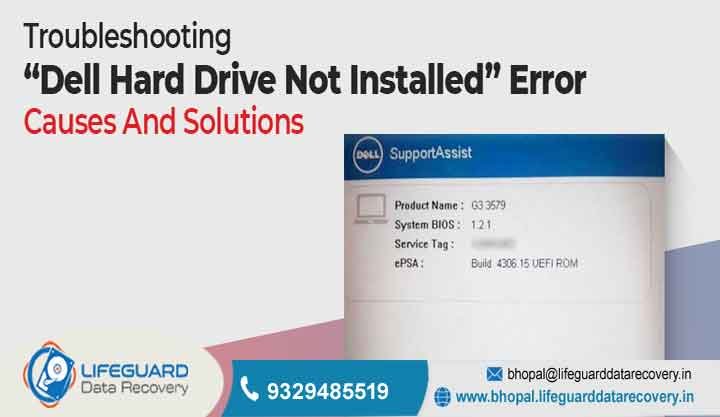
On legacy systems, you will see a simple text prompt asking you to press F1 to reboot or F2 to enter setup. On modern Dell systems (manufactured from 2018 onward), the system bypasses simple text alerts and boots directly into the blue Dell SupportAssist Hardware Check screen.
Primary Causes Behind the Dell Hard Drive Detection Failure
Storage detection failures stem from three primary vectors: firmware misconfigurations, physical connection disruptions, and complete hardware failure. Identifying which category your issue falls into will save you significant time during troubleshooting.
SATA/NVMe Controller Mode Mismatch: Dell motherboards ship with storage controllers configured to either RAID On or AHCI/NVMe. If the operating system was installed under AHCI mode and a system update alters the setting back to RAID On (or vice versa), the storage controller driver fails to launch, making the drive invisible to the bootloader.
Corrupted CMOS Settings: Static electricity, unexpected power outages, or a dying motherboard RTC (Real-Time Clock) coin-cell battery can corrupt the small pool of CMOS memory that saves your hardware configuration.
Interrupted or Faulty BIOS Updates: Firmware updates pushed automatically through Windows Update or Dell Command Update can alter low-level storage controller routines, corrupting the boot sequence entries.
Physical Connection and Hardware Issues
Loose Connector Cables: In traditional laptops using 2.5-inch drives, the thin ribbon/flex cables linking the drive bay to the motherboard can easily work themselves loose due to daily carrying, bumps, or vibration.
M.2 Slot Creep and Thermal Expansion: Solid-state drives generate substantial heat under load. Repeated heating and cooling cycles cause components to expand and contract slightly, which can gradually push an M.2 card out of its contact pins if the hold-down screw is loose.
Drive Controller Failure: Solid-state drives rely on flash memory controllers to manage data traffic. If the controller chip suffers a power surge or component exhaustion, the drive enters a “dead” state where it cannot communicate with the motherboard, even if the NAND flash storage chips remain physically intact.
Mechanical Head Failure (HDDs): Mechanical hard drives feature spinning platters and moving read/write actuator arms. Physical drops or mechanical wear can park the read head permanently on the platter surface, preventing the drive motor from spinning up.
Pre-Troubleshooting Checklist Protecting Your Data First
Before modifying system firmware, opening your laptop case, or resetting BIOS configurations, take the following safety precautions to prevent accidental data loss.
Locate Your BitLocker Recovery Key: Windows Pro and Home (via Device Encryption) automatically encrypt drive volumes on modern Dell hardware. Modifying BIOS storage modes (changing from RAID On to AHCI) or clearing CMOS settings can trip BitLocker security upon reboot. Log into your Microsoft Account Recovery Page on another device to confirm you have your 48-digit recovery key ready.
Disconnect All External Peripherals: USB flash drives, external hard drives, memory card readers, docking stations, and thunderbolt hubs can hijack the boot priority order. Remove all non-essential cables and peripherals before running diagnostics.
Ground Yourself Against Electrostatic Discharge (ESD): If your troubleshooting requires opening the computer chassis, ensure you work on a hard, uncarpeted surface and touch a grounded metal object before handling internal components to protect delicate microchips.
Avoid Destructive Formatting Tools: Do not attempt to use Windows installation media to run commands like until you have confirmed whether the drive contains recoverable data.
Dell Inspiron Series
Dell Inspiron laptops frequently utilize lightweight plastic internal structures and thin flex cables to link secondary 2.5-inch drive bays to the system board. Minor drops or carrying the laptop by a single corner can flex the chassis enough to unseat these flex cable connectors. If you own an Inspiron model, pay special attention to Step 6 and ensure the ZIF (Zero Insertion Force) latch on the motherboard is closed flat.
Dell Latitude & Precision Series
Latitude and Precision systems are built for enterprise environments and rely heavily on Intel VMD (Volume Management Device) technology along with hardware-level BitLocker encryption. When reinstalling Windows or recovering a Latitude laptop, Windows Setup often displays a message claiming “No drives were found”. This is rarely a broken drive; rather, it indicates that the installer lacks the proper Intel Rapid Storage Technology (IRST) driver. You must load the IRST VMD driver from a USB flash drive during operating system setup for the drive to appear.
Dell XPS & Alienware Gaming Series
High-performance Dell XPS and Alienware machines feature fast PCIe Gen4 and Gen5 M.2 NVMe SSDs that generate substantial heat during intensive workloads like video rendering or gaming. These models feature dedicated copper heatsinks clamped over the M.2 drives. Over time, high thermal levels can degrade thermal pads or cause slight mechanical shifting due to thermal expansion. Ensure thermal pads are positioned correctly and the metal heatsink bracket is torqued down evenly.
Best Practices to Prevent Future Drive Detection Failures
Perform Safe Driver and BIOS Updates: Always keep your system updated using the official Dell Command | Update or Dell SupportAssist utilities rather than third-party driver updaters. Ensure your laptop is plugged into AC power during BIOS flashes to prevent unexpected shutdowns.
Monitor Storage S.M.A.R.T. Health: Use built-in diagnostics or software tools to check Self-Monitoring, Analysis, and Reporting Technology (S.M.A.R.T.) metrics regularly. Watch for critical indicators like Reallocated Sectors Count (HDDs) or Percentage Used / Health Remaining (SSDs) to catch failing drives before they collapse completely.
Keep Cooling Vents Clear: Clean dust from internal cooling fans and exhaust vents using compressed air every to 12 months. Lower operating temperatures prolong the lifespan of motherboard storage controllers and SSD controllers.
Maintain Regular System Backups: Follow the 3-2-1 backup rule: keep 3 copies of your important data, across different media types, with 1 copy stored securely offsite or in the cloud.
Frequently Asked Questions (FAQs)
Why does my Dell laptop say hard drive not installed after a BIOS update?
BIOS updates frequently clear custom configuration values and restore factory default parameters.. Toggling the SATA Operation setting back to AHCI in the BIOS setup screen typically resolves this issue instantly.
How do I know if my Dell hard drive is physically dead?
Your hard drive or SSD has likely suffered a fatal hardware failure if Running Dell ePSA diagnostics returns
The drive does not appear in the BIOS under Storage Overview, even after performing a flea power drain and reseating the physical connectors.A mechanical hard drive produces distinct clicking, grinding, or scraping sounds upon powering up. Connecting the drive to another working PC via an external USB enclosure yields no response in Windows Disk Management.
Will reseating my Dell SSD void the warranty or erase my data?
Opening the chassis to reseat an internal drive does not void your standard Dell hardware warranty, provided you do not physically break cables or components during the process. Furthermore, physically reseating a drive simply restores electrical contact it does not modify or wipe the data stored on the NAND flash chips or magnetic platters.


