+971 50 217 6793 Abu Dhabi, UAE [email protected]

How can I fix a damaged external hard drive
Can External Hard Drives Be Repaired Few moments provoke instant anxiety quite like an external hard drive failing to mount. You connect the USB cable, expecting your backup archives, family photos, or critical business files to load instantly.
lifeguard datarecovery Instead, your operating system prompts you to format the disk, displays a cryptically labeled RAW partition, or worse, your drive emits a rhythmic, metallic clicking sound Panic sets in, followed immediately by one critical question: Can external hard drives be repaired?
Yes, external hard drives can often be repaired or at least made accessible long enough to rescue your data. However, the exact repair pathway depends entirely on whether your storage device has suffered logical failure (software bugs, file system corruption, partition table damage) or physical/mechanical damage (read/write head crashes, failed spindle motors, or fried PCB circuit boards).
This comprehensive, step-by-step diagnostic and repair guide breaks down how to identify your drive’s exact failure type, how to safely repair logical issues at home without losing files, and precisely when to stop troubleshooting to prevent permanent, irreversible data destruction.
Drive Repair vs. Data Recovery: What’s the Difference?
Before attempting any troubleshooting step, you must understand a critical distinction that many users overlook: repairing a hard drive is not the same thing as recovering data from a hard drive.
Hard Drive Repair: This process focuses on restoring physical, electrical, or structural functionality to the drive itself. The goal of repair is to make the storage hardware functional again so it can read and write data reliably. Repair methods include swapping printed circuit boards (PCBs), replacing worn-out USB bridge controllers, or repairing damaged firmware modules.
External Hard Drive Data Recovery: This process focuses exclusively on extracting accessible or lost files from a compromised drive and copying them to a fresh, healthy secondary storage device. Data recovery prioritizes file preservation over hardware functionality. In many professional recovery scenarios, technicians temporarily stabilize a dying drive in a cleanroom lab just long enough to clone its sectors, after which the original hardware is safely retired or discarded.
Critical Data Safety Warning: Once a mechanical hard drive (HDD) experiences severe logical corruption or any degree of physical component wear, never rely on that repaired drive as your primary or single backup source again. Even if a drive appears to function perfectly after a software fix, compromised storage media carries a significantly higher statistical rate of re-failure. Use repair steps primarily to regain access, evacuate your critical files, and replace the media.
How to Tell If Your External Hard Drive Is Repairable
Not all hard drive failures are created equal. Trying to run software fixes on a mechanically damaged drive will destroy your platters, while sending a simple cable issue to a professional cleanroom lab wastes money.
Use this decision matrix to evaluate your drive’s condition before taking action Understanding why your external hard drive stopped working is the first step toward choosing the correct recovery path. External hard drives combine fragile mechanical sub-assemblies with delicate integrated electronics and complex software file structures making them vulnerable to multiple failure vectors.
Sudden Abrupt Disconnection
Modern operating systems rely heavily on write caching to speed up file transfers. If you disconnect an external hard drive while files are actively being written or while the operating system is updating background directory indexes the file allocation table becomes corrupted. The hardware remains perfectly healthy, but the computer loses the map it needs to locate your data.
Physical Impact and Drop Damage
Traditional external hard drives contain magnetic platters spinning at speeds between 5,400 RPM and 7,200 RPM. Floating mere nanometers above these spinning platters are tiny read/write actuator heads. If an external drive suffers an impact or drop while operating—or even while powered off the read/write heads can physically slam into the magnetic platter surface. This causes permanent platter scoring, head destruction, and immediate hardware failure.
Electrical Surges and Power Fluctuations
Voltage spikes caused by erratic electrical outlets, faulty power strips, or connecting improper voltage power adapters directly burn out the external drive’s Printed Circuit Board (PCB). Sudden surges can short-circuit protective TVS (Transient Voltage Suppressor) diodes, fry master control chips, or destroy the USB-to-SATA bridge board inside the enclosure.
Failed USB Bridge Controllers
An external hard drive isn’t just a hard drive it’s typically a standard internal SATA hard drive connected to a small adapter circuit board known as a USB-to-SATA bridge board. Over time, heat stress, port wear, or manufacturing defects can cause this bridge controller to fail. When this happens, the hard drive itself remains fully functional, but the bridge board prevents data from traveling through the USB cable to your computer.
Warning Signs of Physical vs. Logical Hard Drive Damage
Before executing diagnostic commands or launching software tools, you must carefully evaluate whether your drive shows symptoms of physical degradation or simple logical corruption.
Physical Hardware Failure Signs
If your drive exhibits any of the following physical warning signs, running diagnostic scans, partition recovery software, or repair utilities will force damaged internal parts to continuously scrape across disk platters, turning recoverable data into unrecoverable dust:
Repetitive Clicking, Ticking, or Beeping Noises: Known as the “click of death,” this indicates the read/write heads are failing to calibrate or read system service tracks, causing the head assembly to repeatedly sweep across the drive and bang against its mechanical stop.
Grinding, Scraping, or Whining Sounds: Indicates severe physical platter damage or a seized spindle motor bearing.
Complete Absence of Rotation or Vibration: When powered on, the drive feels entirely dead without any faint motor vibration. This points to a blown PCB fuse, shorted circuit board, or seized motor.
Immediate System Freezing Upon Connection: Plugging the drive into a computer causes File Explorer, Disk Management, or the entire operating system to instantly lock up or crash.
Logical Software Failure Signs (SAFE for DIY Troubleshooting)
Logical issues occur strictly on a software level. If your drive displays the following behaviors without making any abnormal mechanical sounds, it is safe to proceed with software troubleshooting:
Windows prompts: “You need to format the disk in drive X: before you can use it.”
The drive mounts, but file access displays errors like “Location is not accessible. Access is denied.
Disk Management identifies the drive’s file system as RAW or Unallocated Space.
Drive performance is extremely sluggish when opening folders, but the drive spins quietly and smoothly.
How to Repair an External Hard Drive: Step-by-Step Fixes
If you have verified that your external hard drive is physically silent, spins up smoothly, and displays no signs of hardware destruction, execute the following step-by-step DIY fixes to repair logical issues, fix driver conflicts, and regain access to your files
Check Physical Connections and USB Cables
Peripheral failures account for a surprising percentage of external hard drive issues. Before altering operating system settings or running command-line repair tools, systematically isolate hardware cables and power sources:
Bypass USB Hubs: Disconnect the drive from unpowered USB hubs, keyboard passthrough ports, or front-panel case ports. Plug the USB cable directly into a motherboard-integrated USB port on the back panel of a desktop computer, or directly into your laptop’s main USB chassis.
Swap the Interface Cable: USB cables experience internal copper wire fractures, bent pin headers, and connector fatigue. Replace your USB micro-B, Mini-B, or USB-C cable with a high-quality, verified functional cable.
Verify Auxiliary Power: If your external hard drive is a larger 3.5-inch desktop model, ensure its external 12V power adapter is securely plugged into a working wall socket. 2.5-inch portable drives rely entirely on USB bus power; if your laptop battery is critically low or operating in power-saver mode, your USB ports may underpower the drive’s motor.
Test the Drive on Another Computer or Operating System
Operating system updates, security software policies, and corrupted local system registry keys can prevent a specific computer from mounting external storage volumes correctly.
Connect the external hard drive to a completely different computer running the same operating system (e.g., test on another Windows 11 PC).
Understand File System Compatibility: If your external hard drive was formatted using Apple’s APFS or HFS+ file system, connecting it to a native Windows machine will prompt a fake “corrupted disk” error simply because Windows cannot natively read Mac volumes without third-party drivers. Conversely, modern macOS can read Windows NTFS drives, but cannot write files to them without specialized software utilities.
Reassign Drive Letter in Disk Management (Windows) or Mount in Disk Utility (Mac)
Occasionally, Windows assigns an external drive a drive letter that is already reserved by a hidden system partition, network drive mapping, or virtual drive. This leaves your external disk healthy, but completely invisible inside File Explorer.
Test for External USB Enclosure Failure (SATA Bridge Swap)
If your external hard drive fails to mount, but its internal motor spins smoothly without any clicking noises, the failure may not be the hard drive at all it may simply be a dead USB-to-SATA bridge board inside the plastic enclosure shell.
By extracting the internal SATA hard drive from its protective housing and connecting it directly to your computer using a fresh adapter, you can bypass the failed bridge controller entirely:
Unplug the Drive: Ensure all power and USB cables are completely disconnected.
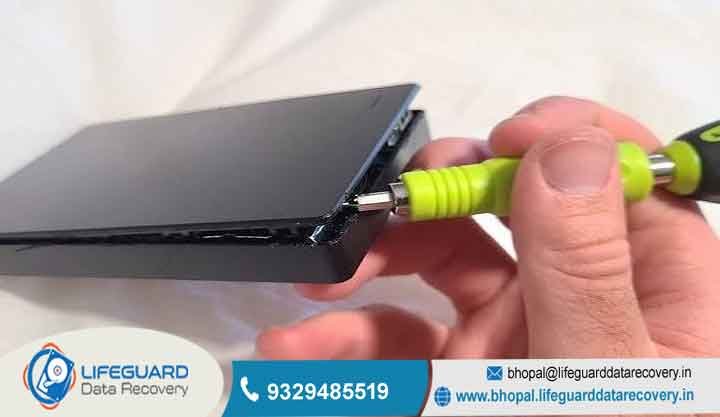
Open the Enclosure: Use a flathead prying tool or spudger to separate the plastic seams of the external hard drive enclosure.
Remove the Internal Drive: Slide the internal 2.5-inch or 3.5-inch hard drive out of its mounting brackets and rubber dampeners.
Detach the Bridge Board: Carefully unseat the small green USB adapter board plugged into the drive’s native SATA data and power pins.
Connect to a New Adapter: Slide the bare internal hard drive into a standalone third-party USB 3.0 SATA docking station or use a dedicated USB-to-SATA adapter cable connected directly to your PC.
When NOT to Try DIY Fixes (Protecting Your Data)
Attempting software fixes when physical hardware components have failed is the single most common cause of total, irreversible data destruction.
Stop all DIY troubleshooting instantly and seek professional lab intervention if your drive experiences any of the following scenarios:
The Drive Dropped While Powered On: Operating platters spinning at thousands of revolutions per minute cannot survive sudden mechanical impact without head contact.
Continuous Mechanical Scraping or Clicking: Attempting to force a clicking drive to read by re-plugging it repeatedly or running software tools will shave magnetic storage layers right off the glass platters.
System Utilities Hang or Cause Windows BSODs: If opening Disk Management or running recovery applications causes your entire host computer to freeze, crash, or display Blue Screens of Death (BSOD), your drive’s internal microcode/firmware has locked up due to severe bad sector accumulation.
When to Use a Professional External Hard Drive Repair Service
When hardware components fail physically, software utilities are powerless. Physical repair requires specialized hardware, proprietary diagnostic tools, donor components, and pristine environmental controls available only through a professional external hard drive recovery service.
Professional data recovery laboratories utilize specialized processes to repair and extract data from physically failed hard drives:
Opening a hard drive casing inside a normal room allows millions of dust particles to settle on the magnetic platters, causing instant head crashes when the drive spins up. Cleanroom environments utilize specialized HEPA filtration systems to strip of airborne micro-particles down to 0.5 microns, allowing engineers to open drive covers safely.
Micro-Mechanical Head Actuator Replacement
When read/write heads bend, short out, or break off due to physical drops, lab engineers source an identical “donor” hard drive matched down to the original drive’s model number, country of origin, production date, and microcode revision. Using precision micro-tools inside the cleanroom, engineers unseat the destroyed head stack assembly and install the functional donor assembly.
PCB Firmware & ROM Micro-Soldering
Modern hard drives store unique calibration parameters known as adaptives inside a tiny EEPROM / ROM chip located on the printed circuit board. If your drive’s original PCB burns out due to a power surge, simply buying a replacement PCB online and screwing it onto the drive will not work
the drive will click endlessly because it lacks its unique adaptive code. Professional repair engineers physically desolder the original 8-pin ROM chip using hot-air rework stations and precision solder it onto a matching functional donor PCB board. If your stored data is irreplaceable, bypass DIY experimentation and consult certified cleanroom engineers specializing in physical hard drive repair and data recovery.
How to Prevent Future External Hard Drive Failures
Hardware will eventually fail; total data loss, however, is completely preventable. Integrate these fundamental maintenance rules into your digital workflow to keep your files safe:
Implement the 3-2-1 Backup Strategy: Never rely on a single external hard drive as your sole data repository. Maintain 3 total copies of critical files across 2 different storage media types (e.g., one external drive and one solid-state drive), with 1 backup copy stored safely offsite or on encrypted cloud storage.
Always Safely Eject Drives: Always click the “Safely Remove Hardware and Eject Media” icon in your Windows system tray (or click the Eject icon in macOS Finder) before pulling out a USB cable. This ensures active write caches are fully committed to disk and head assemblies park safely off the platter surface.
Monitor S.M.A.R.T. Health Metrics: S.M.A.R.T. (Self-Monitoring, Analysis, and Reporting Technology) is a built-in diagnostic monitoring system built into modern storage drives. Download free disk diagnostic utilities like CrystalDiskInfo or Smartmontools every few months to review attributes such as Reallocated Sectors Count, Current Pending Sector Count, and Uncorrectable Sector Count.
Upgrade Critical Workflows to Portable SSDs: If your daily routine involves traveling, field photography, or constantly moving storage in a backpack, consider upgrading to portable Solid-State Drives (SSDs). Unlike traditional mechanical HDDs, SSDs contain zero moving parts, making them vastly more resistant to drops, shocks, and physical vibration damage.
Frequently Asked Questions (FAQs)
Can a dropped external hard drive be fixed at home?
No. Software cannot fix physical impact damage. Dropping an external hard drive causes mechanical issues like bent head assemblies, scratched platters, or spindle motor alignment failures. Attempting to power on a dropped drive at home can score the platters, making files permanently unrecoverable. Physical drops require professional cleanroom extraction.
Will formatting repair a corrupted external hard drive?
Yes, formatting rebuilds file systems, creates fresh partition index tables, and marks soft bad sectors, making logically corrupted external drives fully usable again. However, formatting erases access to all your files. If you need to retain stored files, attempt to extract your data using partition recovery software before initializing a reformat. If your partition has converted to an unreadable state, follow a dedicated guide on recovering data from a RAW external hard drive before taking destructive action.
Is it worth repairing an external hard drive, or should I buy a new one?
Repairing an external hard drive is worth it only to rescue irreplaceable data. Because replacement hard drives and high-speed portable SSDs are relatively inexpensive, spending hundreds of dollars to physically repair an old mechanical drive just to reuse it as a daily blank disk is not cost-effective. Extract your files, retire the failing hardware, and migrate your data to a fresh, warrantied drive.


