+971 50 217 6793 Abu Dhabi, UAE [email protected]

How does Logical data recovery work?
How Does Logical Data Recovery Work Inside the Software Recovery Process Losing important files is honestly scary. One minute you’re working, and the next your external hard drive shows a weird your computer crashes during an update, or you accidentally empty the Recycle Bin with all your photos inside.
It’s a terrible feeling, and most people panic. But here is some good news: unless your drive is physically smashed, making clicking noises, or smells like something burned, your data is probably still hiding inside.
This is where software recovery comes to save the day. But how does logical data recovery work anyway? What actually happens under the hood when your files suddenly go missing Let’s talk about how computers handle our files, why your data isn’t really gone, and how smart software can piece it all back together for you.
What Is Logical Data Failure (The Difference Between Software and Hardware Issues)
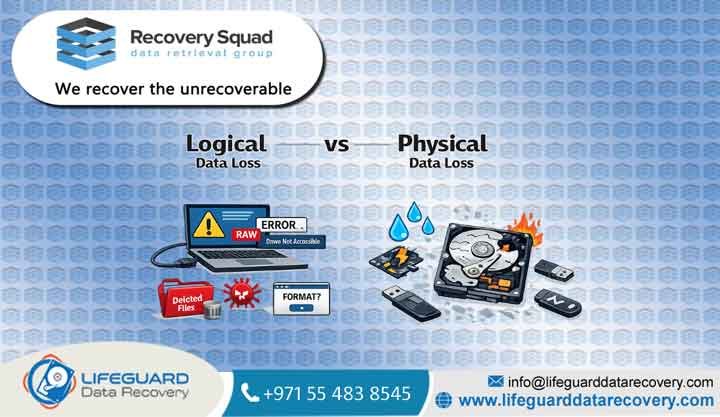
Before we look at the software side, we need to know what went wrong. In the data world, drive problems usually fall into two categories: physical and logical.
Logical data recovery is when your storage device works totally fine physically, but the files inside are messed up. This could be from a software glitch, a corrupted system, or because you deleted something by mistake. If your computer can still detect the drive name in the background settings and the drive can power up smoothly, then you are dealing with a logical issue.
Common Causes Behind a Logical Drive Failure
When doing a data recovery from logical failure, knowing what caused the trouble helps you choose the best way to scan the drive. These issues usually happen because the data stream got cut off suddenly.
Accidental File Deletion and Formatted Hard Drives
When you try to recover data after accidental deletion, you are using a secret shortcut that operating systems use. When you delete a file or quickly format a whole card, the computer doesn’t actually erase the data right away because that takes too long. Instead, it just cleans the index page. It’s like clearing the table of contents in a book but leaving all the chapters inside untouched.
File System Corruption and Damaged Partition Tables
You will need a file system recovery if the “map” of your drive gets broken. If your computer suddenly loses power while saving a file, or if a bad virus attacks, the Master File Table (MFT) gets messed up. The files are still sitting inside the drive, but the computer has completely lost the address book to find them.
How Modern Operating Systems Treat “Deleted” Files
To successfully recover deleted files, you have to stop thinking that deleting a file means it disappears instantly. For a computer, completely wiping a huge movie file or a big folder takes a lot of time and slows everything down.
Computers like to be fast and lazy. They manage files just like a big library with an index catalog.
When you save a photo or document, it gets cut into tiny pieces and saved into little boxes on the drive called clusters. The computer notes down the file name, size, and which boxes it occupies in its master index.
When you click delete and empty the trash bin, the computer does something very simple:
-
It finds the file name in its master index.
-
It changes the status from Active to Available.
-
It tells the system, “Hey, these boxes are now empty. You can write new things here later.”
The actual binary codes of your file are still sitting in those boxes! The computer just thinks the space is free real estate. Until you save new files or download big updates that overwrite those exact boxes, your data stays there safely. This is why deleted file recovery works so well if you act fast.
Step-by-Step Breakdown: How Does Logical Data Recovery Work?
The logical data recovery process uses smart programming to go around the normal operating system rules and look at the raw data boxes directly. Here is how a proper software scan works step-by-step.
Creating a Non-Destructive Sector-by-Sector Disk Image
Before doing any logical hard drive recovery, you must protect your original drive. Running deep scans puts a lot of stress on a weak drive. If your drive has some bad sectors, a direct scan might make it crash completely and die forever.
To avoid this, a good software or a professional logical data recovery company will first make a “clone” of the whole drive. This creates a perfect mirror image file (like an. Once the clone is ready, they unplug the original drive and put it away safely. All the scanning is done on the clone file so nothing gets broken.
File System Parsing and Metadata Reconstruction
First, the recovery program tries to find any leftover pieces of the old file system map. Even if a drive is corrupted, backup copies of the index usually hide somewhere near the back of the drive.
If the software can read a damaged MFT or an older partition map, it can instantly rebuild your old folder structure. This means you get back your files with their original names, original folders, and even the exact date you created them.
Raw Deep Scanning via Advanced File Carving
But what if the index map is completely wiped out or overwritten? Then the software has to use a tougher method called file carving. This way ignores the map entirely and looks at every single tiny box on the drive one by one.
Carving software works like a digital detective looking for unique signatures called magic bytes. Every file type in the world has its own unique starting and ending codes.
Here is how the software reads the raw code when there is no index map:
By spotting these markers, the software knows where a file begins and ends. It collects all those boxes and glues them back into a working file. Because the index map was destroyed, files recovered this way won’t have their original names anymore, so you will have to open them one by one to check what they are.
Data Validation and File Integrity Analysis
At the end, the software checks if the rescued files can actually open. If a file was scattered across different places on the drive before it broke, the software might struggle to glue it perfectly. The tool will show you a health status or a preview of the files, and then you can extract them safely onto a new, healthy hard drive.
HDD vs. SSD Logical Data Recovery Why Flash Storage Changes the Rules
Old-school external hard drives (HDDs) store data using magnetic patterns on spinning metal disks. This makes learning how does logical data recovery work on hard drives quite easy: your data just sits there quietly until new data takes its place. But modern Solid-State Drives (SSDs) use flash chips and internal controllers that follow much stricter rules.
The Impact of the TRIM Command on Deleted Data
When you try to do an SSD logical data recovery, your biggest enemy is a built-in feature called TRIM. On an old mechanical drive, deleted data is left alone until you save something new. But SSD flash chips cannot overwrite data easily; they have to erase a whole block of cells before writing new things, which makes them slow down.
To keep the SSD running fast, the computer sends a TRIM command the moment you delete a file. TRIM tells the SSD controller, “These blocks are useless now, clear them up.” When your computer is idle, the drive runs Garbage Collection and zaps those blocks to absolute zero. Once TRIM does its job, recovery software will find nothing but empty data, making recovery almost impossible.
How the Flash Translation Layer (FTL) Alters Data Coexistence
Even if you run the software immediately before TRIM happens, logical data recovery for SSDs faces another problem called the Flash Translation Layer (FTL).
An SSD doesn’t save data in a neat line. To stop the flash chips from wearing out too fast, the drive uses smart algorithms to scatter your data across different chips. The FTL acts as a translator, keeping a map of where all those scattered pieces are. If a system failure breaks this FTL map, standard software cannot understand the scrambled mess. Fixing this usually requires a laboratory where engineers desolder the chips to read them manually.
Best Practices to Safely Execute a Logical Hard Drive Recovery
If you are facing a data loss emergency right now, what you do in the first few minutes is super important. It decides whether you get your files back or lose them forever.
Stop using the drive immediately: This is the most important rule. Don’t browse the web on that computer, don’t open files, and don’t download anything. Background apps and system updates can write new data over your deleted files any second. If it is an internal drive, turn off the computer right away.
Run software from the outside: Never download or install recovery software onto the exact same drive that lost the files. If you do that, the installation might overwrite your deleted photos. Always install the software on a different computer, and connect your bad drive as an external device using a USB cable.
Save files to a new home: When the software finds your files, never save them back onto the same drive. If you do, you will overwrite other missing files that the software hasn’t saved yet. Always save them to a completely different healthy drive or USB.
When DIY Software Fails: The Role of a Professional Lab
While home recovery apps work great for simple deleted files or quick formats, they cannot fix deep system errors. If your drive has too many bad sectors, running cheap home software can make the drive freeze up and die permanently.
If home software crashes, gets stuck, or finds nothing, it is time to check with a professional logical data recovery company. Expert labs have heavy-duty hardware tools that can do things home users can’t, such as:
Block the TRIM command on SSDs so the drive cannot erase data automatically.
Read around damaged sectors by changing the drive’s timing settings down to milliseconds.
Manually rebuild broken files and complex databases using advanced hexadecimal coding.
Frequently Asked Questions About Logical Recovery
Can you recover data after a full drive format?
It depends on how you formatted it. If you chose Quick Format, it only wipes out the index map, leaving your actual files untouched and easy to recover. But a Full Format on modern computers doesn’t just check for errors; it actively writes zeroes over every single corner of the drive. This wipes out everything completely, and no one can get it back.
How long does a logical data recovery scan typically take?
The scanning time depends on how big your drive is and how fast it can read, not on how many files you lost. A quick scan can finish in 5 minutes. But a deep raw scan on a large 4TB hard drive has to check all 4 trillion boxes one by one. Depending on your USB cable speed, it can easily take between 6 to 14 hours.
Why do some recovered files turn out corrupted or unreadable?
This happens if a file was already partially overwritten by new files before you ran the scan. It can also happen if the file was broken into many pieces across the drive when it was saved. Without the main index map, the software might mix up the pieces, giving you a broken file that cannot open.
Protecting Your Digital Assets from Logical Failures
Logical data recovery works because computers are lazy—they just mark deleted sectors as “available” instead of erasing them right away. By finding leftover index maps or scanning raw boxes for file signatures, recovery tools can bring your lost folders back to life.
But remember, software recovery is an emergency fix, and time runs out fast. Since modern devices use SSDs with aggressive TRIM features that erase data quickly, the chance to rescue your files shrinks every hour. In the end, setting up an automatic backup to the cloud or an extra drive is still the only true way to keep your data safe.


