+971 50 217 6793 Abu Dhabi, UAE [email protected]

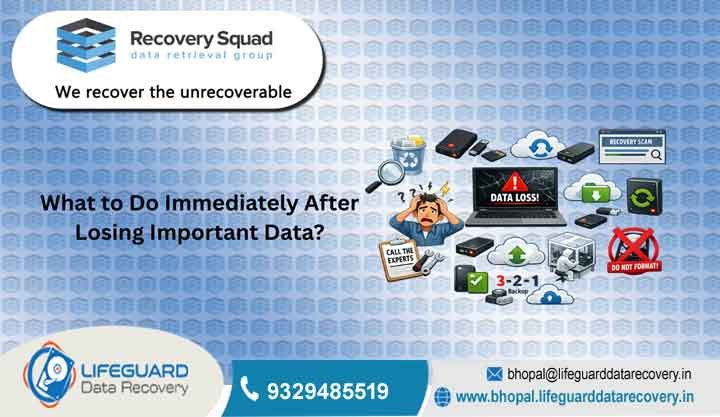
What to do if you lose data?
What to do if you lose data The First Steps to Save Your Files Discovering that your critical files, enterprise database backups, or irreplaceable personal archives have suddenly vanished triggers an instant wave of panic.
lifeguard datarecovery Whether it was caused by a clumsy accidental shift-delete, an unprompted operating system update crash, or a terrifying clicking sound emanating from your computer tower, the actions you take in the next few minutes will directly dictate whether your data is salvaged or permanently lost to the ether.
This comprehensive data recovery guide serves as a definitive digital triage roadmap. It is designed to help you navigate this crisis calmly, preserve the structural integrity of your storage media, and maximize the success rate of your data recovery efforts.
Emergency Triage Box: The First 60 Seconds
STOP WHAT YOU ARE DOING IMMEDIATELY.
If you are experiencing active data loss, do not save your current work, do not close your open applications, and do not restart your machine via the standard shutdown menu. Turn off the system immediately by holding down the physical power button for 5–10 seconds. For external drives, safely but quickly disconnect the USB or interface cable. Every single second the storage medium remains powered on increases the probability that background system writes will permanently overwrite your lost files.
The Golden Rule: Stop Using the Device Immediately
The single most critical variable governing successful data recovery is preventing data overwriting.
When you delete a file, empty the Recycle Bin, or even format an entire storage partition, your computer’s operating system does not instantly scrub the binary code of those files from the physical storage medium. Instead, it alters the file system index (such as the Master File Table in NTFS or the inode map in ext4). It marks that specific storage address as “available space for future write operations.
To the operating system, the data is gone; to the physical storage clusters, the data remains perfectly intact until new information is written directly on top of it.
If you continue to browse the web, check your email, download software, or even allow the system to sit idle, the operating system will constantly write temporary log files, system caches, browser cookies, and background system updates over those exact storage blocks. Once a storage sector is overwritten with new data, the original file is mathematically gone forever. To give yourself the best chance to recover deleted data, you must freeze the drive’s state immediately by pulling the plug or isolating the medium.
Crucial First Steps After Data Loss: HDD vs. SSD Differences
Traditional data recovery strategies were engineered for spinning magnetic platters. However, the rise of modern solid-state memory has fundamentally changed the rules of engagement. Knowing exactly what to do after data loss requires understanding the distinct engineering profiles of your specific storage device. Treating a solid-state drive the same way you treat a mechanical hard drive can result in permanent data destruction within minutes.
Hard Disk Drives (HDDs)
Mechanical hard drives are remarkably forgiving of delay, provided they are powered down. As long as the drive platters are not spinning, the magnetic charges representing your lost files remain statically fixed on the platters indefinitely. Your primary goal when figuring out what to do after data loss on an HDD is ensuring the mechanical parts do not suffer physical wear or friction damage before recovery begins. You can leave a powered-off HDD on a shelf for months, and the data will remain completely recoverable.
Solid-State Drives (SSDs)
SSDs require instantaneous, ungraceful power disconnection. Modern flash memory uses an operating system feature known as TRIM.
When a file is deleted on a TRIM-enabled SSD, the operating system alerts the drive’s built-in controller chip that those specific blocks are no longer carrying valid active data. To maintain peak drive write performance for future use, the SSD’s automated, hardware-level Garbage Collection routine immediately moves into action. It clears out the blocks, actively wiping those flash cells clean and resetting their binary values to zeros.
Because of TRIM, a file deleted on an active, powered-on SSD can become permanently unrecoverable within seconds, even if you never save a single new file to the device. The moment data loss occurs on an SSD, you must cut the power immediately to stop the TRIM command from executing its cleanup cycle.
Data Loss Recovery Steps for Logical Errors
If your storage drive is mechanically sound but your files vanished due to accidental deletion, partition corruption, malware encryption, or a software crash, follow these exact data loss recovery steps to secure your information safely.
Check Local Backups and Cloud Sync Temporary Files
Before deploying automated utility software, thoroughly audit your system’s built-in safety nets. Check the local Recycle Bin (Windows) or Trash (macOS).
Next, inspect cloud storage integration directories like OneDrive, Google Drive, Dropbox, or iCloud. These platforms maintain hidden online “Trash” or “Bin” folders that hold files for 30 to 60 days. Crucially, they also keep robust file version histories online that bypass local drive state changes entirely, allowing you to recover lost files with a single click from a secondary device.
Isolate the Affected Drive and Boot from an External OS
If the files are not found in the trash, do not download data recovery software onto that same drive. If the data loss occurred on your primary system drive (typically the C: drive on Windows), shut the computer down entirely.
Downloading a data recovery tool onto the very drive that holds the lost files is the fastest way to overwrite them. Instead, you must either:
Remove the target drive and connect it to a different, secondary computer as a non-bootable storage slave.
Boot your compromised machine using a live USB recovery environment (such as a Linux live USB or a Windows Preinstallation Environment).
This guarantees that the operating system cannot write random background data over your lost files.
Select and Deploy Specialized File Recovery Solutions
Run a reputable, read-only data recovery tool (such as Recuva, PhotoRec, or enterprise-grade utilities) from your external drive or secondary machine. Direct the software to perform a targeted raw scan on the isolated partition to recover corrupted files.
The Golden Extraction Rule: When extracting and saving the discovered files, always choose a completely different physical drive (like an external hard drive or a USB flash drive) as the destination. Saving recovered files back onto the same drive you are scanning will overwrite the other files you are trying to rescue.
Immediate Data Recovery Tips for Physical Hardware Failure
If your data loss is accompanied by mechanical anomalies, standard digital file recovery solutions will fail completely. Running consumer software on a physically failing drive will rapidly cause catastrophic, permanent data destruction.
Warning Signs of a Physically Failing Storage Drive
Shut down your hardware immediately if you notice any of these distinct physical symptoms:
The “Click of Death”: A rhythmic, repetitive clicking, ticking, or knocking noise occurring when the drive spins up. This indicates that the read/write head assembly has failed, is misaligned, or is physically striking the mechanical limit stops while searching for tracking markers.
Grinding or Screeching: High-pitched metallic sounds point to severe head crashes where the read head ismaking direct physical contact with the spinning magnetic platters, carving rings into the substrate and scraping your data into dust.
BIOS Detection Failure: The storage drive spins up, but the motherboard’s BIOS/UEFI or the operating system’s Disk Management utility fails to detect the hardware’s presence entirely.
Extreme I/O Freezing: The computer completely locks up, stutters, or produces Blue Screen of Death (BSOD) errors whenever you attempt to open or copy specific directories, signaling massive clusters of uncorrectable bad sectors.
When to Contact a Professional Data Recovery Service
If your drive exhibits clear signs of mechanical failure, DIY home fixes are out of the question. Any utility software that forces a clicking drive to repeatedly spin and scan will ruin the magnetic platters.
Safe data extraction requires an expert professional data recovery service. These specialized laboratories reconstruct hardware inside dust-free ISO Class 5 Cleanrooms, where engineers can safely swap broken head stacks, repair corrupted drive microcode (firmware), and use specialized hardware imagers to copy raw data block-by-block without killing the device. If your data is financially or operationically irreplaceable, skip software entirely and hand it to a dedicated data recovery service.
The Smart Way Forward: Data Loss Prevention Strategies
The true secret to stress-free data recovery is ensuring you never have to rely on it. Implementing proactive data loss prevention habits will protect your digital workflow from hardware failures
Deploy an Uninterruptible Power Supply (UPS)
Sudden power blackouts and line voltage surges can blow the preamplifier chips on a hard drive’s internal printed circuit board (PCB) or corrupt an SSD’s translation table. A battery-powered UPS cleans up dirty electrical lines and gives your system enough time to execute a clean, automated shutdown during an outage.
Monitor S.M.A.R.T. Health Status Metrics
Use diagnostic tools to check your drive’s Self-Monitoring, Analysis, and Reporting Technology (S.M.A.R.T.) metrics regularly. Catching rising reallocated sector counts, spin retry counts, or high operating temperatures early allows you to clone your drive long before it starts clicking.
Frequently Asked Questions
Can I recover files after formatting my hard drive?
Yes, in most scenarios. A “Quick Format” merely deletes the file system directory map and replaces it with a clean structure, leaving the underlying data clusters fully intact until new files write over them. However, a “Full Format” or low-level format actively overwrites the entire volume with zeros, making software recovery impossible.
Does turning off my computer save deleted data?
Yes. Performing an immediate hard shutdown stops the active operating system from making background writes, logging cache files, or letting the SSD TRIM command run its automated garbage collection routine.
Will the “freezer trick” temporarily stop my hard drive from clicking?
No. Absolutely under no circumstances should you put a modern hard drive into a freezer. This is an outdated internet myth from the 1990s that does far more harm than good. The drop in temperature creates instant internal condensation once the drive is removed, causing water droplets to form directly on the internal magnetic platters. When spun up, this moisture leads to immediate head crashes and permanent data loss.


