+971 50 217 6793 Abu Dhabi, UAE [email protected]

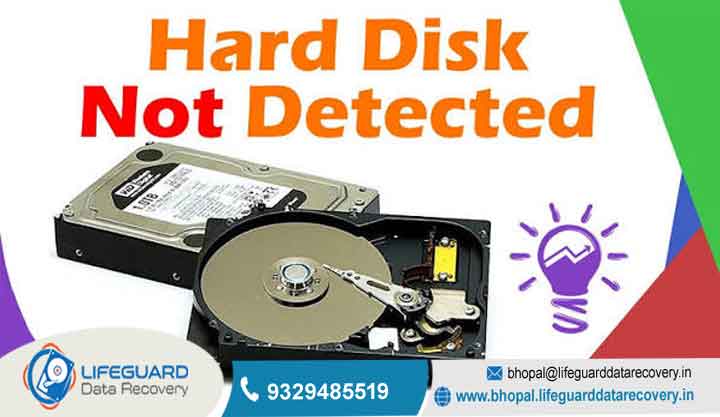
When a hard drive is not detected,
When a hard drive is not detected, in Windows It can be super scary when your storage drive suddenly disappears from your computer, especially if you have important photos, work files, or backups on it. Don’t worry too much just yet.
lifeguard datarecovery When a hard drive is not detected, Whether you have an internal hard drive not detected after doing a Windows update, an external drive that won’t show up on your desktop, or an HDD not detected in BIOS setup, this guide will help you fix it step by step without losing your precious files.
Signs Your Hard Drive Has Physical Damage
Before we start trying software fixes, we need to make sure your drive isn’t physically broken. Trying to fix a physically damaged drive using software tools can actually make things worse and cause permanent data loss.
Listen and Observe for Critical Hardware Symptoms
Strange Sounds: You hear clicking noises over and over (people call this the “click of death”), grinding, high-pitched squeaking, or buzzing sounds.
Spinning Problems: The drive starts to spin, stutters, and quickly stops again. Or maybe it doesn’t spin at all when plugged in.
Computer Slows Down: Windows freezes up completely, lags really bad, or shows a Blue Screen error as soon as you plug the drive in.
Important Rule: If your drive shows any of these physical signs, please stop right there. Do not run any scan software or formatting tools! Unplug it immediately and talk to a professional data recovery service instead.
Common Reasons Why a Hard Drive Is Not Detected
Knowing what causes this hard drive detection problem makes it much easier to find the right fix:
Loose or Bad Cables: The SATA cable, NVMe slot, or USB wire might be broken or not plugged in properly.
Drive Letter Conflicts: Your drive partition is healthy, but Windows File Explorer forgot to give it a letter to open it.
Corrupted File System: The drive shows up as “RAW” or “Unallocated” inside Windows settings.
Outdated Drivers: Old or glitched device drivers in your computer manager.
BIOS Settings Glitch: Disabled motherboard ports or missing special driver settings like Intel VMD.
Common Reasons Why a Hard Drive Is Not Detected
Understanding what actually causes a hard drive detection problem makes it much easier to choose the right solution. Storage drives rely on a delicate chain of hardware connections, system drivers, partition tables, and motherboard firmware to work properly. If any link in that chain breaks, the drive disappears.
Loose or Damaged Cables: A worn-out SATA data cable, loose power connector, damaged NVMe slot, or bent USB cable connector can break the physical signal path.
Unassigned or Conflicting Drive Letters: Sometimes the drive partition is completely healthy, but Windows File Explorer forgets to give it a drive letter making it invisible to you.
Corrupted or Missing File Systems: If a partition table gets corrupted during an unexpected power outage, the drive will show up as “RAW” or “Unallocated” inside Windows Disk Management.
Outdated or Ghosted Drivers: Corrupted disk drivers or outdated USB host controller drivers in Device Manager can prevent Windows from recognizing connected hardware.
BIOS / UEFI Firmware Misconfigurations: Disabled SATA ports in your motherboard settings, an outdated BIOS version, or missing storage technology settings like Intel VMD (Volume Management Device) can hide the drive before Windows even boots up.
Quick Physical & Hardware Checks
Always start with simple physical hardware isolation tests. Ruling out basic wire and port issues first saves you hours of unnecessary software tweaking.
Inspect Cable Connections and USB Ports
For External Hard Drives: Unplug the USB cable from your current port and reconnect it directly to a USB port on the back of your desktop computer tower (motherboard ports). Avoid using unpowered external USB hubs or front panel ports, as they often fail to deliver enough electrical power. If possible, swap out the USB cable entirely to test for silent wire degradation.
For Internal Hard Drives: Shut down your PC completely, unplug the main power cord from the wall, and open your computer chassis. Carefully disconnect and firmly re-seat both the SATA power cable coming from the power supply and the SATA data cable attached to the motherboard. If you are using a small M.2 NVMe SSD, unscrew it, gently remove it, re-insert it firmly into the motherboard slot, and screw it back down.
Test the Drive on Another Computer
The fastest way to isolate the root cause is to plug your hard drive into a completely different laptop, desktop, or external USB docking station.
Is the drive detected on the second computer? That is great news! It proves that your hard drive hardware is functional. The detection issue is limited to your primary computer’s Windows settings, corrupted drivers, or BIOS configuration.
Is the drive still not detected on any computer? If the drive remains completely invisible across multiple systems, the drive itself likely has a dead enclosure bridge board, damaged printed circuit board (PCB), or internal mechanical drive failure.
Inspect Cable Connections and USB Ports
For External Drives: Unplug the USB cable and plug it directly into a port at the back of your PC tower (try not to use unpowered USB hubs). You can also try using a different USB cable to see if the old one died. For Internal Drives: Turn off your PC, unplug the power cord, open the side case, and re-seat both the power cable and data cable tightly. If you use a small M.2 NVMe SSD, take it out and push it back into its slot gently.
Test the Drive on Another Computer
Try connecting your drive to another laptop or PC, or put it inside an external drive dock.
Does it work on the second PC Great! That means the hard drive itself is fine. The issue is just with your main computer’s Windows settings or drivers. Still not detected on any PC? Then the drive might have a broken board or internal mechanical issue.
Safe Data Recovery Strategies for Undetected Hard Drives
If your drive has important photos or documents on it, always try to save your data first before doing any aggressive formatting fixes.
DIY Data Recovery Software for Logical Issues
If your drive shows up in Disk Management (even as RAW or unallocated) and doesn’t make any strange clicking noises Please do not format the drive or save new files to it yet. Download a reliable data recovery software to scan the drive and copy your important files out to another safe storage drive first.
Professional Hard Drive Recovery Services
If your drive is suffering from a failed hard drive recovery situation like hardware clicking, water damage, or electrical short-circuits:
Avoid using software tools like CHKDSK, because forcing a damaged drive to read and write will make it break faster.
It is much safer to send your drive to a certified lab that handles professional hard drive recovery. They have cleanrooms and special tools to safely extract your files.
How to Prevent Hard Drive Detection Problems in the Future
Safely Eject Drive: Always click “Safely Remove Hardware” on your taskbar before pulling out an external drive cable.
Check Drive Health: Run simple disk health tools once in a while to check for bad sector warnings before the drive breaks completely.
Use the 3-2-1 Backup Rule: Keep 3 copies of your important files, stored on 2 different drive types, and keep 1 copy online or at a secondary location.
Use a Surge Protector: Plug your PC and external drives into a good power strip to protect them from electrical surges.
Frequently Asked Questions (FAQs)
Why is my hard drive spinning but not detected?
When the hard drive spins, it means power is going in, but the data lines aren’t sending signals to Windows. This usually happens because of a bad data cable, missing drive letters in Disk Management, or corrupted software drivers.
Can a dead hard drive be detected in BIOS?
If the hard drive is completely dead electrically or mechanically, BIOS will not detect it at all. But if it only has corrupted files or broken partitions, it will still show up inside BIOS normally.
How do I fix an internal hard drive not showing up after a Windows update?
Sometimes Windows updates accidentally replace your storage controller drivers with default ones. You can open Device Manager, find Disk drives or IDE ATA/ATAPI controllers, choose update driver or reinstall it, and then scan for new hardware.
Will formatting an undetected hard drive erase all my data?
Yes, formatting wipes out all files and sets up a fresh file system on the disk. If you need important files off the drive, make sure to use a file recovery tool or consult undetected hard drive recovery services before formatting it.


