+971 50 217 6793 Abu Dhabi, UAE info@lifeguarddatarecovery.com

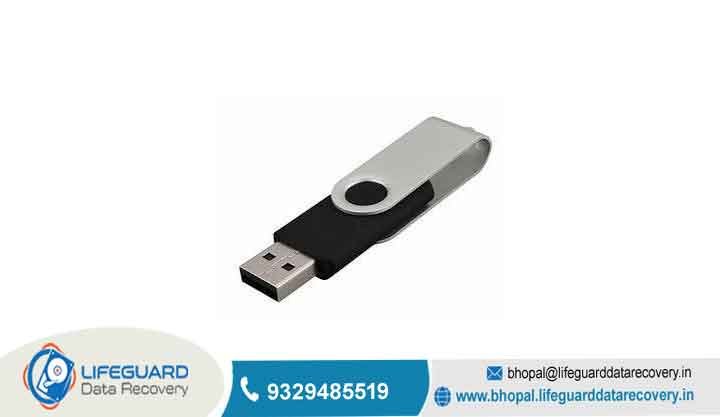
Why is my USB drive not recognized?
Why is my USB drive not recognized You plug your thumb drive into your computer, expecting your files to pop up right away, but… nothing happens. Or maybe you hear that classic Windows plug-in sound, but your drive is completely invisible. It is super frustrating, especially when you have important photos, work documents, or school projects saved on it.
lifeguard datarecovery The good news Most of the time, this happens because of a minor port glitch, a confused Windows driver, or a simple setting issue that you can fix in just a few minutes. You do not need to be a computer wizard to fix this issue yourself. Before we jump into the steps, though, let’s talk about your files first.
Why Is My USB Drive Not Recognized Anyway?
When your computer refuses to talk to your pendrive, it usually comes down to one of four main reasons. Understanding what is happening behind the scenes makes fixing it much easier.
Power and Port Issues
Sometimes, the front USB ports on desktop computer towers or multi-port USB hubs do not send enough electrical power to turn the drive on properly. Flash drives need a stable supply of power to run their internal memory controllers. Dust, pocket lint, or tiny bits of dirt stuck inside your computer port can also block the metal pins from making a clean connection.
Confused Windows Drivers
Drivers are like mini-translators between your computer hardware and your Windows software. If Windows updates itself in the background, or if you unplugged the drive too fast last time while it was busy saving something, those driver files can get confused and glitch out. When this happens, Windows simply gives up and displays a driver error.
File System Errors
Unplugging your flash drive while it is actively writing data can mess up its internal map. USB drives use file systems like FAT32, exFAT, or NTFS to keep your files organized. If that index gets damaged, Windows will get confused and mark the drive as “RAW,” meaning it sees the hardware but cannot read the files inside.
The Drive Is Just Getting Old
Flash drives do not last forever. If a drive has been sitting in a drawer for five years or used every single day for heavy work, the tiny memory chips inside might simply be wearing out. Flash memory relies on small electrical charges stored inside internal memory cells, and over time, these charges can slowly leak out.
Quick Physical Checks (Try These First!)
Before messing with complicated computer settings, let’s rule out any simple physical hardware hiccups. These steps take less than two minutes and resolve a surprising number of issues.
Plug Directly into Your Computer (Skip the USB Hub)
If you are using an external USB hub or an extension cable, try unplugging it completely. Plug your flash drive straight into your computer socket instead.
If you are using a desktop PC, plug the drive into the ports at the back of the computer tower rather than the ones on the front panel. The ports on the back are soldered directly onto your motherboard, which means they deliver much better power stability and cleaner signals than the front ports, which rely on long thin internal wires.
Try a Different USB Port (or Another Computer)
Plug your drive into a standard USB 2.0 port (usually black inside) instead of a USB 3.0 port (usually blue inside). USB 2.0 and USB 3.0 run on different internal software systems inside Windows. If your USB 3.0 driver software crashes, plugging the drive into a USB 2.0 port will often allow Windows to read it right away.
It is also a great idea to plug your drive into another laptop, a smart TV, or a friend’s PC. If the drive opens fine on another device, then your USB stick is perfectly healthy, and the problem is just a setting on your main computer. If it refuses to turn on anywhere, the drive itself might have physical hardware damage.
Clean Out Dust and Inspect the Plug
Take a quick look inside the metal tip of your USB drive and into your computer’s USB socket using a small flashlight. It is very easy for pocket lint, dust, and tiny bits of dirt to get trapped in there, preventing the four metal contact strips from touching properly.
Clean it out gently using a dry wooden toothpick. If the metal contacts look dirty or dull, you can wipe them very gently using a tiny drop of rubbing alcohol on a cotton swab. Make sure to let it dry completely before plugging it back into your computer!
Simple Windows Settings Fixes
If your hardware looks fine and the drive gets power, the issue is likely hidden inside Windows settings. Here is how to clean up system software glitches step by step.
Restart Your PC and Turn Off Fast Startup
Did you know Windows does not actually shut down completely when you click restart? Windows 10 and 11 use a feature called “Fast Startup” that saves old computer errors into temporary memory so your system boots up faster. Unfortunately, this means driver errors can remain stuck in your system memory across normal restarts.
Refresh Your USB Drivers in Device Manager
If you keep getting that annoying “Device Not Recognized” error popup in the corner of your screen, your driver software is probably corrupted. You can force Windows to throw away the broken driver and install a fresh one automatically.
Advanced Disk Repairs
If the drive still isn’t showing up in File Explorer after trying software updates, it is time to check if Windows is hiding the partition layout inside your system’s drive management tool.
Fix Read-Only & Disk Errors Using Command Prompt
If your drive locked itself up or has minor errors on its memory chip, you can ask Windows to scan and clear those errors using simple command lines.
Try Using Linux to Grab Your Files
When a drive turns into a “RAW” format due to corrupted files, Windows will refuse to open it and will ask you to format it right away. However, Linux operating systems are much smarter at reading damaged drives without forcing you to delete your stuff.
You do not need to replace Windows to do this you can run Linux off a temporary USB stick Download a free Linux operating system like Ubuntu onto a spare, working flash drive using a free utility tool like Rufus.
Boot your computer off that Linux drive (choose “Try Ubuntu” mode so it runs entirely in your computer’s temporary memory without installing anything to your hard drive).
Plug in your broken USB drive. Most of the time, Linux will ignore the Windows file errors and let you open the drive right away.Copy your important files off the USB drive and save them safely to your computer’s internal storage drive.
How to Recover Files from an Unreadable USB Drive
If your drive has precious photos or work documents and none of these steps opened it up, don’t panic just yet. You can still salvage your files if you follow a safe data recovery process:
Make a Clone Copy First
Do not run file recovery software directly on a failing USB drive. Scanning a drive for lost files subjects the memory chips to heavy read stress. If the memory chips are already failing, this heavy stress can cause the drive to break down completely midway through the scan. Instead, use a disk backup tool to save a single image file (like an
.img file) of the drive to your computer desktop.Scan the Saved Clone File
Once you have created your image file, run your file recovery software against that saved clone file on your computer desktop instead of the physical USB drive. This keeps your physical flash drive completely safe from extra wear and tear while you search for lost files.
Knowing When to Stop
If your USB drive shows up in Disk Management as or will not register in Device Manager at all, the main memory controller chip inside the thumb drive has likely failed physically. At this point, home software tools will not be able to read the drive, and you will need to send the drive to specialized chip-off recovery lab services to extract the data manually from the chips.
Simple Tips to Keep Your Flash Drive Healthy
A few simple habits can save you from big data headaches in the future:
Always Safely Remove Your Drive: Clicking the small “Safely Remove Hardware” icon down near your Windows clock gives your computer time to finish saving background files before you pull the drive out.
Don’t Use Flash Drives for Long-Term Storage: Flash memory needs electricity once in a while to keep its memory cells charged. If you leave a USB drive locked away in a drawer for years without plugging it in, files can slowly fade away on their own due to data rot.
Follow the 3-2-1 Backup Rule: Always keep 3 copies of your important files, across 2 different storage types (like your computer hard drive and a cloud drive), with 1 copy stored in a separate location. A USB thumb drive is great for carrying files around, but it should never be the only place your important data lives!
Frequently Asked Questions (FAQs)
Why does my flash drive make a sound, but I still can’t see my files?
This happens when Windows recognizes that a physical hardware device was plugged into the port, but it cannot figure out how to read the partition layout or forgot to give it a drive letter. Changing or adding a drive letter in Disk Management usually fixes this issue right away.
Can I fix a corrupted USB stick without wiping my data?
Yes, absolutely! Simple issues like driver bugs, port power glitches, or missing drive letters do not touch your personal files at all. As long as you do not click “Format,” your data stays untouched while you fix the problem.
Why does Windows say “USB Device Not Recognized”?
This warning means your computer motherboard received an invalid signal from your drive controller. It usually points to dirty USB connector pins, outdated controller drivers in Windows, or internal hardware damage inside the thumb drive itself.
How long do USB flash drives usually last?
With regular daily use, a decent quality flash drive usually lasts anywhere between 3 to 5 years. However, if it just sits in a bag without being plugged in, the memory cells can slowly lose their electrical charge over time.