+971 50 217 6793 Abu Dhabi, UAE info@lifeguarddatarecovery.com

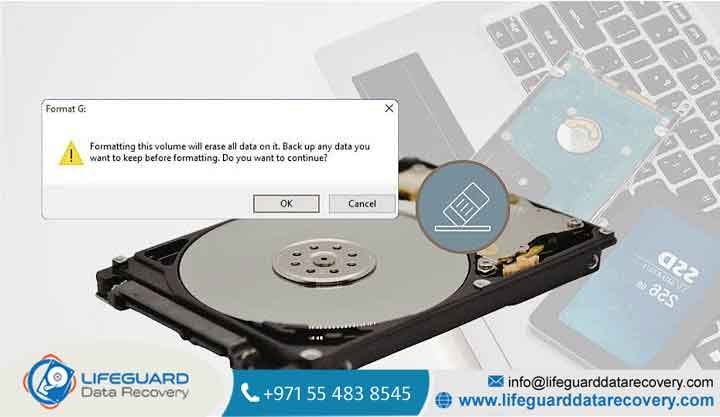
Can data be recovered after formatting?
Can Data Be Recovered After Formatting The Ultimate Recovery Guide Have you ever accidentally hit “Format” on your computer or camera, and then your heart just drops It is a terrible feeling. You instantly realize that years of family vacation photos, critical work documents, or years of accumulated backups have completely vanished in a split second.
lifeguard datarecovery The panic is real, and the first question that pops into your head is always Is everything gone forever, or can I get it back When you format a storage drive, the operating system clears the pathing to your files. This makes the storage space look completely empty and clean to the computer.
But here is the most important thing you need to know right now the data is often still physically present on the device. Whether or not you can successfully restore it depends entirely on the type of format performed, the storage media technology, and how quickly you act. This guide will walk you through exactly how formatting works and what you can do to rescue your files.
Is Data Recovery Possible After Formatting The Short Answer
Yes, data recovery is possible after formatting, but it is not an absolute guarantee. To understand why, it helps to see how storage devices handle files. They manage data using two main components: the index (the file directory that acts like a table of contents, pointing to where data lives) and the actual architecture (the physical sectors or blocks holding the raw data bits).
When a drive undergoes a basic format, the operating system doesn’t actually search the whole drive to erase every single piece of data. Instead, it simply wipes out the index and marks the remaining space as available for future use. The old files remain completely intact in a state known as orphaned data until new information overwrites them.
Because the raw data bits are still sitting on the drive platters or memory chips, specialty software can scan the storage blocks directly, recognize the file structures, and rebuild them. However, this window of opportunity is incredibly fragile.
The Golden Rule of Data Recovery: Stop using the formatted drive immediately. Writing any new files, installing programs, or even running background system processes can permanently overwrite the orphaned data, destroying your chances of recovery completely.
Quick Format vs. Full Format: What Happens to Your Data?
The formatting method you choose dictates whether your files are easily salvageable or permanently destroyed. Modern operating systems handle these two options with completely different underlying processes, and knowing which one occurred is vital for setting your recovery expectations.
Quick Format
A Quick Format acts like erasing the table of contents from a textbook while leaving all the internal pages intact. It deletes the existing file allocation table or master file table, replacing it with a clean, new file system structure. Because it skips scanning the physical sectors for errors, the process takes only seconds.
Advanced recovery utilities can bypass the missing index, scan the raw sectors for recognizable file headers, and perform file carving (identifying files based on their internal binary signatures) to piece your data back together. If you did a Quick Format, your chances of a successful recovery are exceptionally high.
Full Format
A Full Format is highly destructive. Starting with Windows Vista and continuing through Windows 10 and Windows 11, a Full Format does more than just scan for bad sectors it performs a complete zero-fill operation. The operating system writes a literal value of to every single logical block address across the entire volume.
According to National Institute of Standards and Technology (NIST) Special Publication guidelines for media sanitization, a single-pass overwrite with zeroes permanently removes data beyond the reach of keyboard recovery software or laboratory forensics. Unless a Full Format was manually canceled or interrupted halfway through, data recovery after a full format is technically impossible.
How to Recover Data After Formatting a Hard Drive (HDD)
Traditional hard disk drives (HDDs) utilize spinning magnetic platters to retain data. Because they do not actively purge blocks until forced to by a direct overwrite, mechanical hard drives provide the highest success rates for post-format recovery. If you have mistakenly formatted a mechanical drive, recovery software can reconstruct your data by scanning the unmapped magnetic tracks.
To perform a safe recovery at home without accidentally destroying your own files, you should follow a strict, careful process.
The SSD Exception Can You Recover Files After Formatting an SSD?
Solid-State Drives (SSDs) handle deleted and formatted data entirely differently than traditional hard drives. Recovery expectations must change significantly when dealing with flash memory architectures because of how the underlying hardware interacts with the operating system.
Unlike HDDs, flash memory cells cannot overwrite existing data without first erasing the entire block. Writing over a cell that already contains data requires a slow “read-erase-modify-write” cycle, which drastically slows down the drive over time. To prevent this performance degradation, modern operating systems deploy an automated background feature known as the TRIM command. During idle periods, the drive’s autonomous Garbage Collection routine physically flushes the flash memory cells using an irreversible voltage shift to prepare them for future writes.
Because of this aggressive automated system, software-driven file recovery after formatting an SSD is generally impossible if TRIM is active. The narrow window for recovery exists only if the SSD was unmounted immediately before the TRIM command could be fully processed, or if the drive is an older legacy model connected via an interface that does not support TRIM pass-through (such as certain basic USB-to-SATA external enclosures).
Isolate the Card or Drive Immediately
Remove the memory card from your camera, audio recorder, or phone the exact second you realize a mistake was made. Do not snap new “test” photos to see if the card works, and do not leave it plugged into a computer just to browse through empty folders. Every second it remains active increases the risk of background system writes.
Toggle the Physical Write-Protect Switch
If you are using a standard SD card, look at the left edge for the tiny plastic lock slider. Slide the physical write-protection notch down into the “Lock” position. This hardware-level lock blocks any inbound data or operating system write requests, ensuring the drive remains completely unchanged while you connect it to a computer.
Use Read-Only Software Tools
When scanning the media, use specialized data recovery utilities that access the raw partition in a strict read-only mode. The software should parse the unallocated space to extract file headers without attempting to fix, rewrite, or alter the directory data on the formatted card itself.
Software vs. Professional Formatted Drive Recovery: When to Seek Help
When evaluating how to handle a formatted drive, you must carefully weigh the accessibility and low cost of DIY file-carving applications against the advanced engineering capabilities of certified data recovery labs.
When to Use DIY Recovery Software
Software tools are highly effective for logical mishaps where the drive itself is in perfect health. If you performed a casual Quick Format on a healthy mechanical hard drive, a standard USB thumb drive, or a camera SD card, software is your best first step.
As long as the device mounts properly in your operating system’s disk management panel, does not make any unusual physical noises, and the lost files are non-critical or easily replaceable, running a commercial recovery utility at home is a highly reliable, cost-effective option.
When to Choose Professional Formatted Drive Recovery Services
You should skip home software entirely and opt for a dedicated laboratory environment under the following high-stakes scenarios:
The formatted drive belongs to an enterprise system or contains irreplaceable, legally binding business assets.
The files were lost from a laptop SSD where active TRIM background deletion requires immediate physical chip-off desoldering to preserve the flash memory states before they clear out.
The drive begins making physical clicking, grinding, or buzzing noises immediately after the formatting incident, indicating a mechanical hardware failure.
Professional labs use hardware-level imagers to clone data block-by-block, bypassing standard operating system commands that trigger TRIM or automatic writes. If a drive suffers a mechanical or firmware breakdown, engineers can rebuild the physical components inside a certified ISO Cleanroom, securing raw data fragments that automated home software would destroy through repeated, stressful read cycles.
Verify the Volume Size and Drive Letter
Before executing any command-line disk wipes disk utility initializations, or partition adjustments, take an extra moment to verify the details. Carefully match the exact megabyte or gigabyte capacity and the assigned drive letter to the physical device you intend to wipe. Double-checking these details takes five seconds but can save you weeks of recovery work.
Frequently Asked Questions (FAQ)
Can I recover data after a full format?
No, in modern desktop operating systems, a full format executes a comprehensive zero-fill overwrite across the entire disk structure. Once a block is overwritten with a value of zero, the previous magnetic or electronic states are completely erased, making raw data recovery impossible even for forensic labs.
Does formatting a drive delete everything forever?
A quick format only deletes the directory organization and structural layout pointers, meaning the data itself is not deleted forever until new files are written over those locations. A full format or a secure cryptographic erase command, however, does overwrite the data permanently.
How much do formatted drive data recovery services cost?
Professional laboratory recovery pricing varies widely based on the size of the storage media, the drive architecture (HDD vs. complex SSD arrays), and whether the drive requires physical cleanroom modifications. Logical recovery typically starts around.