+971 50 217 6793 Abu Dhabi, UAE info@lifeguarddatarecovery.com

Warning Signs of Hard Drive Failure
Warning Signs of Hard Drive Failure (Full Diagnostic & Recovery Guide) Every storage drive operating inside your workstation, laptop, or server is a consumable component with a finite operational lifespan. While an enterprise-grade mechanical hard disk drive (HDD) averages a real-world lifespan of three to five years,
lifeguard datarecovery a contemporary Solid-State Drive (SSD) typically extends that window to five to ten years depending on write volume. However, when these devices cross the threshold into degradation, the consequences can be catastrophic.
Data loss is rarely a sudden accident; more often, it is the culmination of ignored warning indicators. Identifying these anomalies early is the single most critical factor in preventing permanent data loss.
This comprehensive diagnostic guide details the distinct hardware warning signs, hidden system errors, and safe isolation protocols required to triage a failing storage medium before it suffers a total crash.
Mechanical Hard Disk Drives (HDDs)
Traditional HDDs are marvels of micro-mechanics. They store bytes magnetically on physical platters spinning at high speeds while ultra-precise read/write heads hover just nanometers above the surface. Because of these moving parts, hard disk failure signs are frequently audible and physical. Mechanical friction, spindle motor wear, and structural misalignment present distinct acoustic cues before the system completely gives out.
Solid-State Drives (SSDs and NVMe)
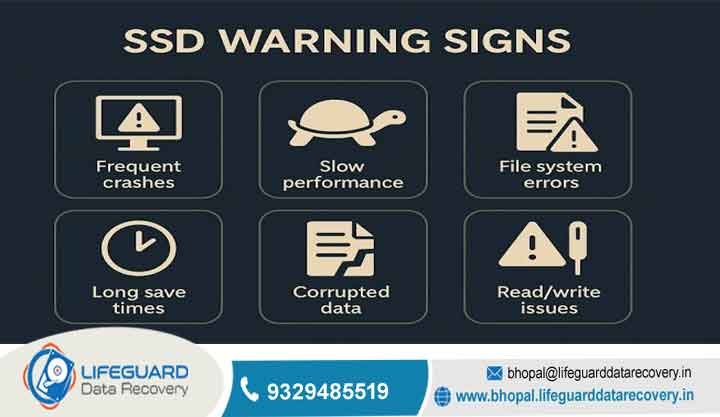
Solid-state memory features absolutely no moving parts; data is routed purely electronically across complex arrays of NAND flash cells managed by a central controller chip. Because of this architecture, failing hard drive symptoms on an SSD are entirely silent. An NVMe or SATA SSD rarely provides acoustic warnings; instead, it might drop its write speeds to near-zero, lock itself into a read-only state, or vanish from your system’s basic input/output system (BIOS) instantly without a single warning click.
Common Signs of Hard Drive Failure to Watch Out For
If you are experiencing structural performance degradation or unexpected operating system behavior, look out for these primary signs of hard drive failure. Catching even one of these indicators early can mean the difference between a simple data transfer and an expensive cleanroom data recovery extraction.
1. Mechanical Clues: Clicking, Grinding, or Screeching Noises
If your computer begins emitting repetitive clicking, grinding, scraping, or high-pitched whining sounds, your mechanical drive is in a state of critical physical distress.
This distinct rhythmic clicking (colloquially known as the “Click of Death”) indicates that the actuator arm’s read/write head can no longer align with the drive’s internal tracking sectors. It is physically snapping back to its home position, repeatedly knocking against its limiter block. Grinding or scraping sounds imply the read head has physically touched down on the spinning magnetic platter, carving away the magnetic substrate holding your files.
2. Severe System Slowdowns, Freezing, and Blue Screens (BSOD)
While a sluggish operating system can stem from bloated software, fragmented registries, or malware, a sudden and recurring system freeze is one of the most common hard drive problems you will encounter.
When an operating system tries to load a file or launch an application residing on a degraded storage sector, it enters an infinite read-retry loop. The system stalls while waiting for the hardware to respond. If the drive fails to deliver the requested data within a strict timing window, the OS crashes completely, triggering a Blue Screen of Death (BSOD) in Windows or a Kernel Panic in macOS.
3. Scrambled Data: Corrupted Files and Cryptic Error Messages
Are your recently saved documents throwing “File Format Not Recognized” errors? File corruption is a hallmark symptom of a damaged hard drive.
As magnetic storage sectors or flash cells decay over time, the raw bits stored within them flip or go missing entirely. You might encounter sudden operating system alerts like “The file or directory is corrupted and unreadable” or specific error codes during routine file transfers, such as Windows Error 0x80070570. This signals that the data written to the drive no longer matches its checksum parameters.
4. The Vanishing Act: Disappearing Files and Folders
In advanced stages of drive decay, entire file structures, folders, or localized directories may vanish altogether without any user intervention. This occurs when the drive’s Master File Table (MFT), GUID Partition Table (GPT), or indexing partitions degrade. When these directory structures are lost, the operating system loses the map pointing to where your files are physically located on the disk, treating the space as empty or unallocated.
5. Boot Failures and the “No Bootable Device” Prompt
When the sector holding your system’s critical bootloader records (such as the Master Boot Record or EFI system partition) suffers a physical or logical failure, the machine will refuse to load into the operating system. Instead, turning on your computer will drop you directly into a black BIOS/UEFI configuration screen displaying severe errors such as:
6. Excessive Heat and Constant Fan Activity
An abnormally hot laptop chassis or a desktop fan running continuously at maximum speed can point to underlying hard drive problems.
If an HDD’s internal spindle motor bearings wear down or lose their lubrication, internal friction spikes dramatically. The drive generates extreme heat as it struggles to maintain operational RPMs. For SSDs, a failing flash controller unit dealing with unstable voltages or shorted capacitors can also trigger rapid overheating, which further accelerates the degradation of nearby NAND cells.
7. S.M.A.R.T. Warning Indicators and Firmware Alerts
Modern storage drives are built with an internal early-warning system known as S.M.A.R.T. (Self-Monitoring, Analysis, and Reporting Technology). This automated firmware watches specific operational attributes, including reallocated sector counts, wear-leveling counts, and raw read error rates.
If any of these metrics cross predefined manufacturer thresholds, the drive passes a hard drive failure warning indicator directly to your system BIOS during bootup, explicitly stating that drive failure is imminent and replacement is required immediately.
What Happens When a Hard Drive Fails? (Logical vs. Physical Failure)
When analyzing what happens when a hard drive fails, data recovery engineers split drive failures into two main categories: logical and physical. Understanding this distinction determines whether you can fix the issue with software or if you must power down the device instantly to prevent total data destruction.
Immediate Triage: What to Do If Your Hard Drive Is Failing Right Now
If your diagnostics or physical symptoms point to an active, real-time failure, you must handle the device with extreme care to preserve your files. Treat a dying hard drive like an open wound—minimize movement, reduce pressure, and stabilize the environment.
Stop Stressing the Drive and Power Down
If the drive is making clicking noises, throwing constant read errors, or causing your system to lock up, immediately shut down the computer. Avoid soft restarts; hold down the physical power button until the machine cuts electricity entirely.
Leaving a failing drive plugged in allows operating system background processes (like cloud syncing, indexing, and telemetry logging) to continue reading and writing metadata. This accelerates physical deterioration and risks overwriting corrupted but salvageable files.
Clone the Drive Safely Rather Than Copy-Pasting
If the drive is still partially responsive and you must extract data yourself, do not open file explorer and begin copying and pasting large directories manually. Traditional copy-pasting causes the drive heads to jump all over the platters to find non-contiguous files, which drastically increases mechanical stress and thermal output.
Instead, use raw sector-by-bit imaging utilities (such as ddrescue, Clonezilla, or Macrium Reflect) to clone the failing drive sequentially from the very first sector to the last onto a healthy, identical target disk. Sequential reading places far less strain on a weak read head assembly and creates an exact replica of your data that you can safely run recovery software against later without touching the damaged original drive.
Know When to Seek Professional Cleanroom Data Recovery
If your data is highly critical (such as irreplaceable family photos, legal records, or business accounting databases) and the drive is no longer recognized by your BIOS or is clicking loudly, stop using software tools entirely. Software cannot fix physical hardware damage.
In these scenarios, the drive must be carefully uninstalled and shipped to an authorized data recovery provider. These facilities feature dust-free Class 100 cleanrooms where technicians can safely open the drive shell, swap out broken actuator head matrices with matching donor parts, or perform advanced micro-soldering on dead flash memory controllers to extract raw hex data directly from the platters or NAND chips.
HDD Failure Warning Signs Prevention & Protection Strategy
The only foolproof way to handle hard disk failure is to design your workspace so that a hardware crash is nothing more than a minor configuration inconvenience rather than an operational disaster. By implementing redundancy, you shift from a reactive state of panic to a proactive state of security.
Set Up Active Health Monitoring Apps
Do not wait for physical symptoms or system crashes to alert you to a drive issue. Install lightweight background monitoring software that continuously queries S.M.A.R.T attributes and tracks system health metrics in real-time.
CrystalDiskInfo (Windows): A free, open-source utility that sits quietly in your system tray, displaying your drive temperatures and transforming complex firmware attributes into a simple “Good,” “Caution,” or “Bad” status readout.
DriveDx (macOS): An advanced drive health diagnostic utility for Mac that uses specialized heuristics to detect drive issues far earlier than standard built-in OS tools.
By configuring these applications to flash a warning pop-up or send an email alert the exact moment a drive registers its first reallocated sector or thermal spike, you can easily migrate your data weeks before any physical early signs of hard drive failure become noticeable to the naked eye.
Frequently Asked Questions
How long does a hard drive last before failing?
On average, a traditional mechanical HDD lasts between 3 to 5 years under standard operational workloads. Solid-State Drives (SSDs) lack moving parts and generally boast a longer operational lifespan, averaging 5 to 10 years.
Will a failing hard drive slow down my internet or just local apps?
A failing drive will not impact your raw incoming network bandwidth or ISP speeds. However, because modern web browsers constantly cache files, read cookies, swap virtual memory, and write temporary data directly to your system drive, localized disk read/write slowdowns will cause webpages to hang, freeze, or fail to render completely. This often makes a local hardware failure look exactly like a slow, dropping internet connection.
What is the “Click of Death” in hard drives?
The “Click of Death” is an acoustic warning signal unique to mechanical hard drives. It occurs when the delicate read/write head assembly suffers an internal electrical malfunction, drops out of structural alignment, or encounters unreadable system tracking data on the platters.
The drive’s internal actuator arm repeatedly strikes its physical mechanical stop as it tries to reset its tracking position, producing a distinct, rhythmic clicking, ticking, or snapping sound.