+971 50 217 6793 Abu Dhabi, UAE info@lifeguarddatarecovery.com

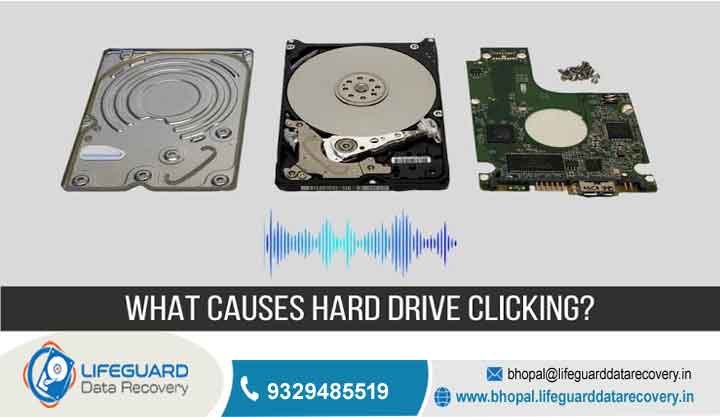
Why is my hard drive clicking?
Why Is My Hard Drive Clicking Causes, Fixes, and Data Recovery Rules A healthy hard drive operates with a quiet, predictable hum punctuated by soft, irregular ticks as it accesses files. However, if your storage device suddenly begins emitting a loud, rhythmic tapping, it is an unmistakable sign that something inside the mechanical housing has gone wrong.
lifeguard datarecovery When a storage drive begins to malfunction, understanding the difference between a minor setup issue and terminal hardware failure is the only way to protect your files. This comprehensive guide breaks down why hard drives make clicking sounds, explores whether solid-state drives (SSDs) can experience similar failures, and provides an authoritative roadmap to recover your data safely without risking permanent data loss.
Is a Clicking Hard Drive Always Broken Soft Clicks vs. The “Click of Death”
Not all drive sounds indicate an emergency. Hard drives use mechanical components including spinning platters, microscopic read/write heads, and a moving actuator arm—that naturally produce noise during standard operations. Distinguishing between normal noise profiles and critical errors is your first line of defense.
Soft Clicks and Normal System Noises
Thermal Calibration: As a drive runs, its internal components warm up and expand. The drive periodically pauses to recalibrate the distance between the heads and the platters, emitting an occasional, isolated click.
Data Indexing: When your operating system runs a background antivirus scan, indexes search files, or clears system caches, the actuator arm moves rapidly back and forth. This creates a light, sporadic, low-volume “chatter” or scratching sound.
Power Management: Modern computers feature aggressive power-saving modes. When a secondary storage drive goes to sleep, you may hear a single distinct click as the heads park, followed by a soft whirring sound as the spindle motor winds down.
Common Causes of Hard Drive Clicking Noise
To address a clicking hard drive, you must understand the underlying engineering failures causing the issue inside the drive casing. Hard drives are highly precise instruments built to nanometer tolerances; even minor disruptions can trigger severe failures.
Misaligned Read/Write Heads (Head Crash)
The read/write heads hover microscopic distances above the spinning platters on a cushion of air generated by the spinning disk itself. Physical impacts, drops while the drive is active, or severe chassis vibrations can knock the actuator arm out of alignment.
When this alignment is lost, the blind heads cannot read the tracking data (servo tracks) stamped onto the platters during manufacturing. The drive arm sweeps outward to find its bearings, fails, and slams back against its physical stop limit, producing a loud click.
Insufficient Power or Damaged Cables
A mechanical drive requires stable electrical currents to spin its heavy platters up to thousands of RPMs and keep them there. Faulty USB cables, loose internal SATA connections, or underpowered USB hubs fail to provide enough amperage.
The drive will partially initialize, lose power as the motor strains to reach full speed, reset, and try again, creating an intermittent clicking loop. This issue is especially common with portable external hard drives connected to low-power front panel USB ports on older desktop towers.
Service Area Corruption or Firmware Glitches
Every hard drive has a hidden, reserved section on its platters called the Service Area (SA) or “System Area.” This track is inaccessible to the operating system and stores the drive’s internal firmware, factory defect logs, and startup instructions.
If a sudden power surge or system crash corrupts this area, the drive’s physical components may be perfect, but the head will sweep back and forth endlessly looking for boot code it cannot find. The drive gets stuck in an initialization loop, clicking continuously until power is removed.
Magnetic Platter Degradation (Bad Sectors)
As mechanical drives age past the 3-to-5-year mark, the magnetic coating on the platters naturally degrades due to friction, thermal stress, and wear. This degradation manifests as bad sectors.
The drive attempts to read the unreadable area over and over, producing a rhythmic clicking noise that continues until the operating system drops the connection or times out.
Stiction (Stuck Actuator Arm)
When a drive is running hot and suddenly loses power, it may fail to park its heads safely on the plastic landing ramp outside the platter boundary. The heads drop directly onto the mirror-smooth platters and stick to them due to microscopic static friction (stiction).
When powered back on, the spindle motor tries to spin against the stuck arm, causing a distinct clicking or straining buzz as the components fight the physical resistance.
Can an SSD Make a Clicking Sound Clear Signs of SSD Failure
Solid-state drives (SSDs) are entirely electronic and contain zero moving parts. Because they rely on NAND flash memory cells managed by an integrated controller chip rather than motors, arms, and platters, a physical SSD cannot produce a mechanical clicking sound.
Why You Might Think Your SSD is Clicking
If you hear clicking coming from a computer that boots exclusively from an SSD, the drive itself isn’t making the noise. The sound is usually caused by:
Secondary Storage Drives: An adjacent mechanical secondary hard drive inside your system that is failing or spinning up.
Coil Whine: High-frequency electrical switching noise from capacitors on the motherboard or GPU under heavy computing loads.
Cooling Fans: A failing or obstructed cooling fan blade hitting a loose wire casing inside the chassis.
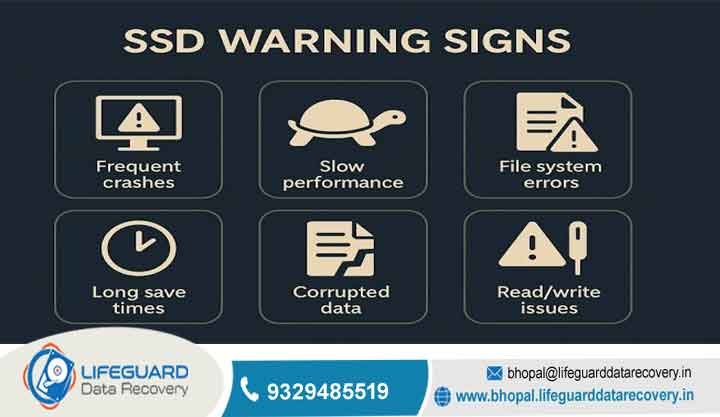
Read-Only Lockout: When the SSD controller detects that its NAND flash cells are reaching their wear limits, it permanently locks the drive into a read-only state to protect the existing data from corruption. You can copy files off the drive, but you cannot write new data.
Frequent System Crashes: If your computer frequently experiences Blue Screens of Death (BSOD) or kernel panics during file transfers, it may be struggling to read from failing flash blocks.
Total Detection Failure: Unlike hard drives, which often fail slowly over weeks, an SSD controller chip can fail instantly. When this happens, the drive drops detection completely, leaving you with a “No Boot Device Found” error at startup.
How to Handle and Fix a Clicking Drive
If you are dealing with a clicking drive, follow these troubleshooting steps in order. Missing a step or running intensive software diagnostics on a physically damaged drive can cause permanent data destruction.
Immediately Power Down the Device
Unplug the external drive or shut down the PC completely. Do not restart the operating system to browse files, as every rotation of a damaged drive can cause the heads to scratch away the data-carrying magnetic layers.
Isolate the Power Supply and Cables
Rule out electrical issues before assuming the hardware is dead. Swap out the existing SATA or USB cable with a new, high-quality replacement. If using an external drive, plug it directly into the rear USB ports of a desktop motherboard rather than a front panel port or an unpowered USB hub splitter.
Extract the HDD from External Enclosures
External drives rely on a small printed circuit board inside their plastic housing called a USB-to-SATA bridge controller chip. If this bridge chip shorts out, it can corrupt power delivery and cause the drive to click.
Carefully open the enclosure, extract the bare internal hard drive, and connect it directly to a computer using an internal desktop SATA port or a verified external docking station.
Check System Detection and S.M.A.R.T. Health
Turn the system on briefly to check if the drive is recognized in the BIOS or Disk Management without loud clunking. If it is readable, immediately open a non-invasive health utility like CrystalDiskInfo.
Look for the Reallocated Sectors Count and Current Pending Sector Count parameters. If either value is non-zero, your drive is actively failing and should be cloned immediately.
The Truth About DIY Fixes: Software Dangers and The Freezer Myth
When data loss threatens irreplaceable family photos or critical business documents, it is tempting to try online quick fixes. However, two common internet solutions can permanently destroy your data.
The Software Trap
Standard data recovery software utilities are designed exclusively for logical data loss (such as deleted files, formatted partitions, or minor directory corruption). They operate by sending intensive read commands across every sector of the drive.
If your drive is clicking due to a mechanical issue, forcing it to run this software stresses the damaged components and can grind the head directly into the platter, turning your data into unsalvageable dust.
The Freezer Myth
The internet often suggests wrapping a clicking drive in a plastic bag and placing it in a freezer overnight to shrink metal components and release stuck parts. This is highly dangerous.
The moment you remove the frozen drive, moisture condenses inside the sealed chamber directly onto the magnetic platters. When you spin the drive up, the water causes an immediate head crash and corrodes the magnetic storage layer, making professional cleanroom recovery impossible.
The Dangers of DIY Mechanical Repair
Online tutorials showing users opening their hard drive covers with a Torx screwdriver to manually unstick a head via the platter spindle are deeply misleading. Hard drives are assembled in sterile environments.
A single particle of household dust is massive compared to the microscopic gap between the drive head and the platter. Opening a drive outside an ISO-certified cleanroom allows airborne dust to settle on the platters, destroying the magnetic sectors instantly when the drive spins up.
Data Recovery Pathways for Clicking HDDs vs. Failed SSDs
When hardware fails, the strategy to recover your files depends on whether the drive uses mechanical platters or flash memory.
Recovering Data from a Clicking Hard Drive
Because a clicking drive points to physical failure, recovery requires matching the broken drive with an identical donor drive (same model, firmware version, and country of origin). A cleanroom engineer must physically swap the damaged Head Stack Assembly (HSA) into the patient drive before the data can be safely imaged using specialized hardware.
Recovering Files From a Failed SSD
SSD recovery bypasses mechanical components entirely. When an SSD fails due to a dead controller chip, specialists use a factory-level technique called NAND chip-off extraction.
They carefully desolder the individual memory chips from the circuit board, place them into specialized reader hardware, and manually reconstruct the scrambled data using custom algorithms that mimic the original controller’s wear-leveling logic.
When to Call Professional Data Recovery Services
If your drive continues to click after you have swapped the cables and checked the power supply, you have reached the limits of safe DIY troubleshooting. Continuing to power on the drive increases the risk of permanent data loss.
What Happens Inside a Certified Data Recovery Cleanroom?
When you send your drive to a professional team, the drive undergoes a safe recovery process:
Visual Intake & Electronics Inspection: Engineers inspect the exterior printed circuit board (PCB) under high magnification for electrical shorts or blown components.
Understanding Service Protections
When choosing a data recovery provider, look for companies that offer clear financial guarantees:
No Data, No Fee Policies: This ensures you only pay the full recovery fee if your target files are successfully restored.
ISO Cleanroom Certification: Verify that the provider works in verified clean environments to protect your drive from contamination.
Upfront Diagnostics: Choose services that provide a clear evaluation and price quote before performing any invasive repairs.
Proactive Tips to Prevent Storage Drive Failures
The best way to handle drive failures is to make them a minor inconvenience rather than a major crisis. Implementing a robust data security strategy protects your files from sudden hardware issues.
Implement the 3-2-1 Backup Strategy: Keep three separate copies of your data, stored on two different types of media (e.g., an internal SSD and an external backup drive), with one copy stored securely offsite or in a cloud storage platform.
Monitor S.M.A.R.T. Telemetry: Use drive monitoring utilities to track attributes like “Raw Read Error Rate” and “Pending Sector Count” to catch early warning signs before your drive begins to fail physically.
Use Quality Surge Protectors: Sudden power surges can fry a drive’s PCB controller chip instantly. Protect your system by connecting your computer and external arrays to high-quality surge protectors or an Uninterruptible Power Supply (UPS).
Frequently Asked Questions (FAQs)
Can I use data recovery software on a clicking drive?
No. If the clicking sound is caused by a mechanical issue, running data recovery software will force the damaged drive heads to drag across the platters, scraping away the magnetic coating and causing permanent data loss.
How long does a hard drive last before failing?
Most consumer-grade mechanical hard drives have an expected operational lifespan of three to five years. After this window, bearing wear, motor degradation, and component fatigue significantly increase the risk of spontaneous failure.
Why is my external hard drive clicking when plugged into my laptop but not my desktop?
Laptops often restrict power delivery to their USB ports to preserve battery life. If your external drive works fine on a desktop but clicks when connected to your laptop, the laptop’s port is likely failing to supply enough power to spin up the drive’s mechanical components.
What does a head crash sound like compared to normal seek noises?
Normal seek noises sound like light, rapid, irregular scratching or clicking. A head crash produces a loud, rhythmic, metallic tapping, clunking, or scraping sound that repeats continuously in an unprompted loop.